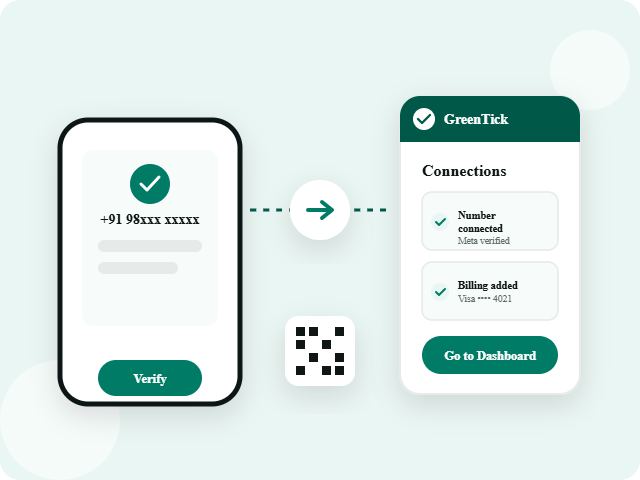


Follow this simple walkthrough from your GreenTick dashboard to Meta Business Suite, number verification, and payment setup.
Connecting your WhatsApp number to GreenTick takes just a few minutes when you follow the right sequence. This guide walks you through launching the connection from your dashboard, selecting your business portfolio, handling number conflicts, scanning QR codes for mobile sync, and completing your payment setup.
Follow these exact steps based on the official Meta onboarding flow.
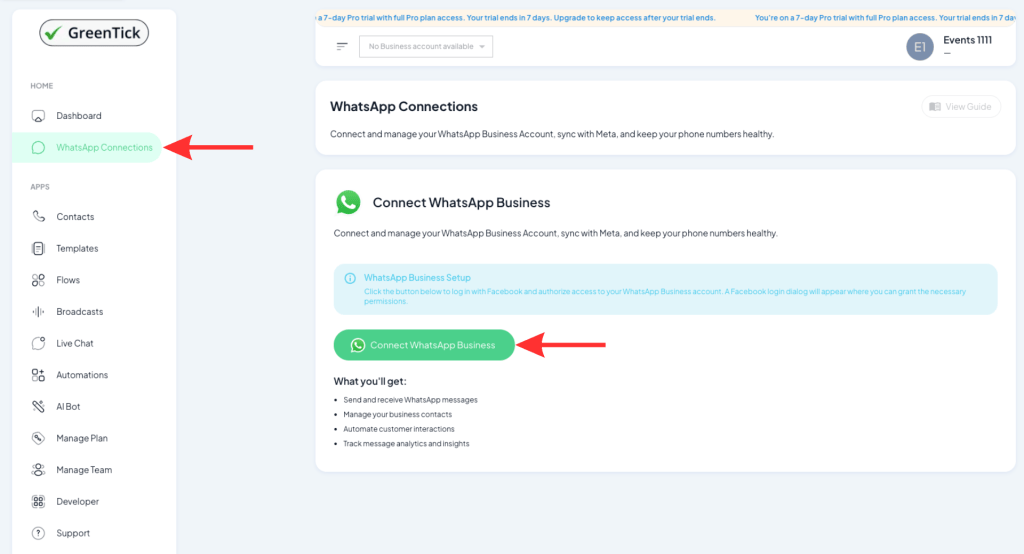
Log into your GreenTick dashboard, look at the left sidebar panel, and click on WhatsApp Connections. Then, Click the green Connect WhatsApp Business button..
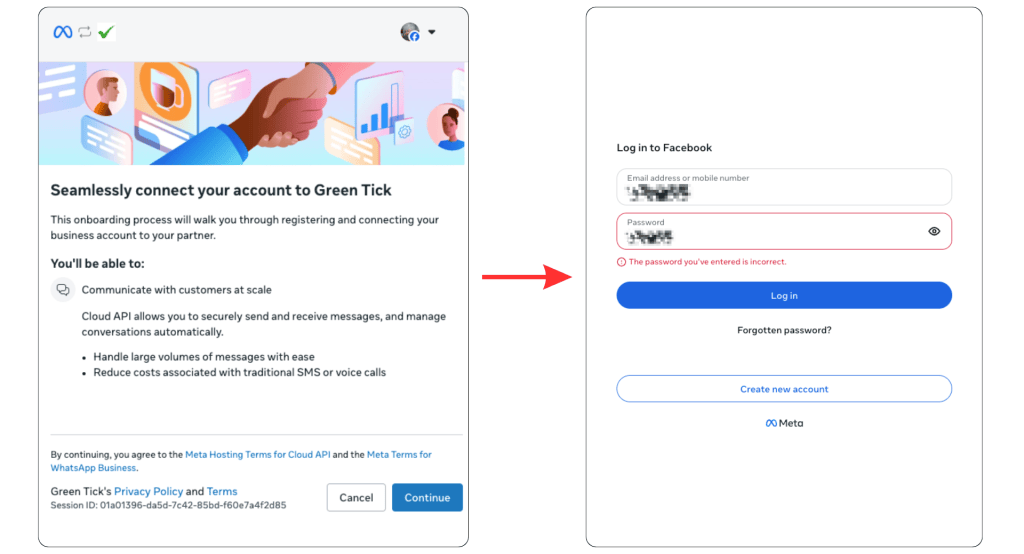
Log in with your Facebook account, verify and grant the requested permissions to link GreenTick with your Meta profile.
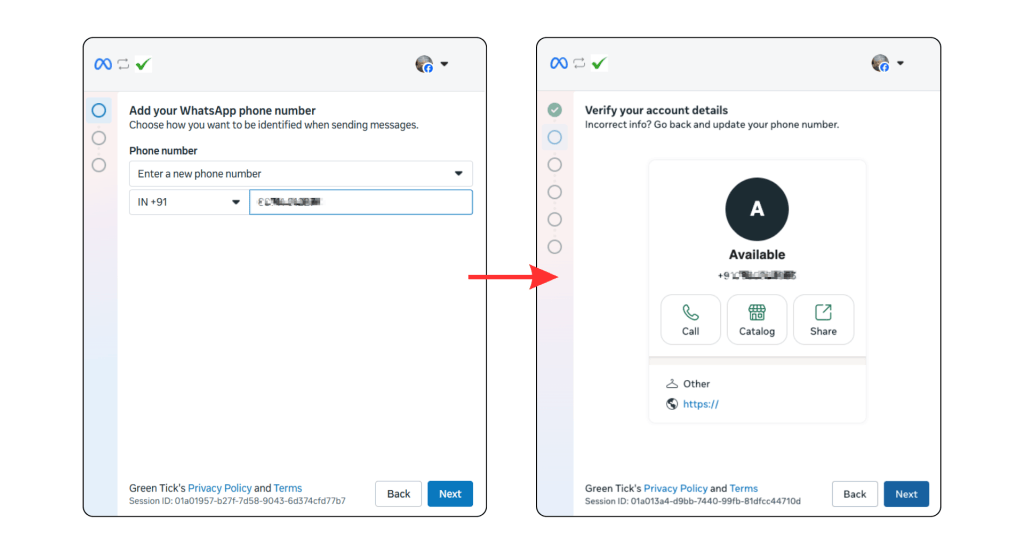
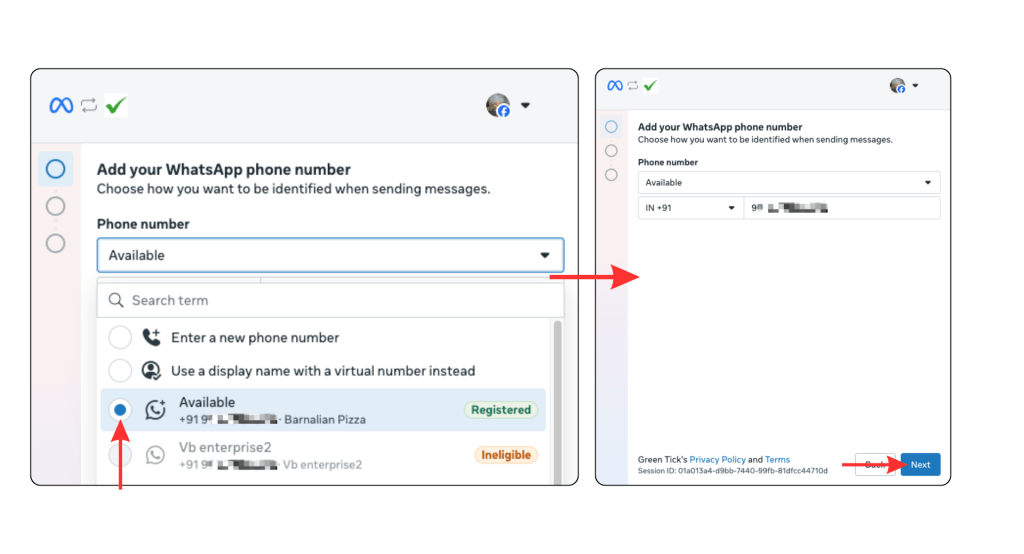
Input your intended phone number and country code. If the number is brand new and completely unused, it will pass through instantly.
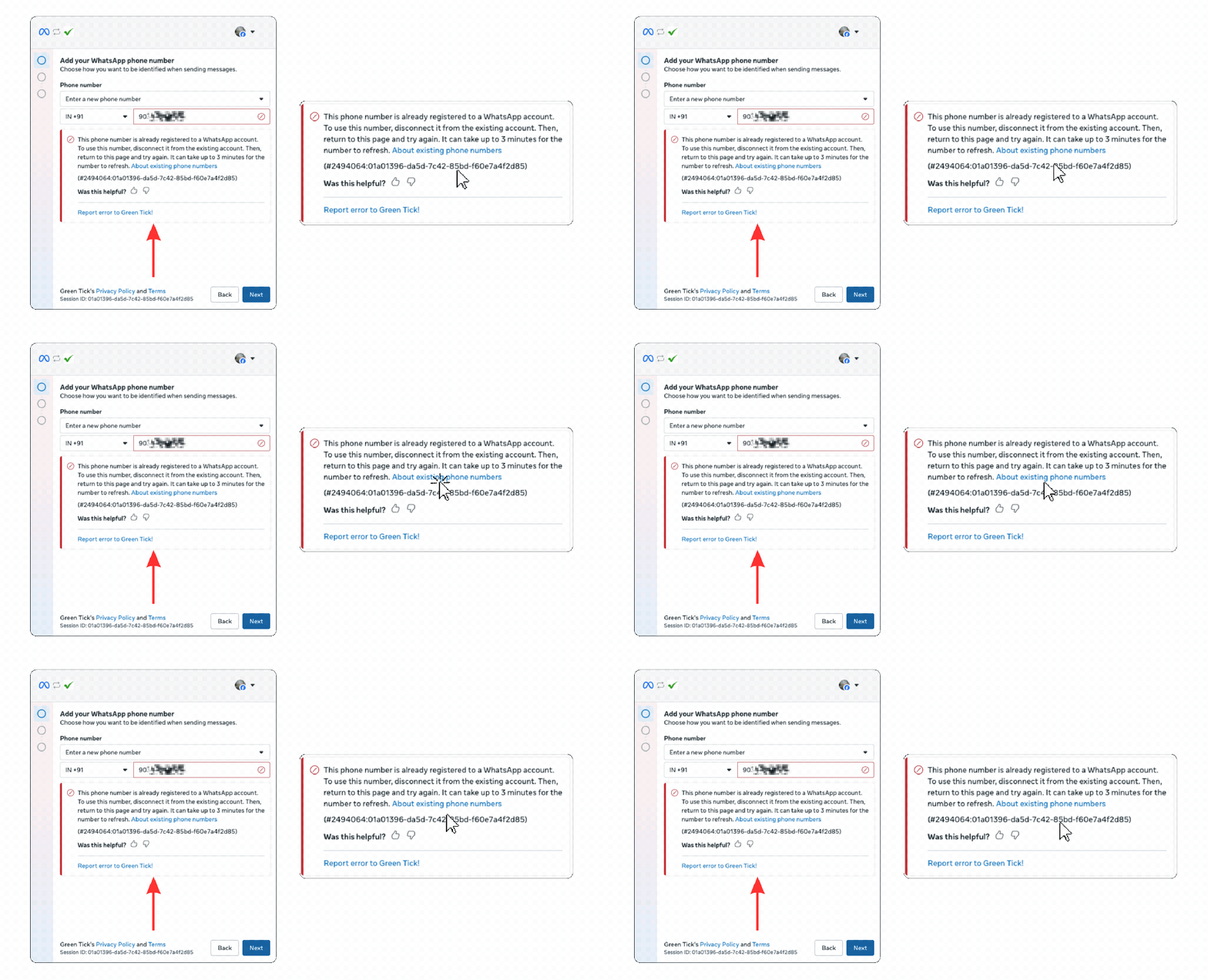
If you see an error saying the number is already registered to a WhatsApp account. In this case, make sure you have logged in to Facebook beforehand, for smoother process.
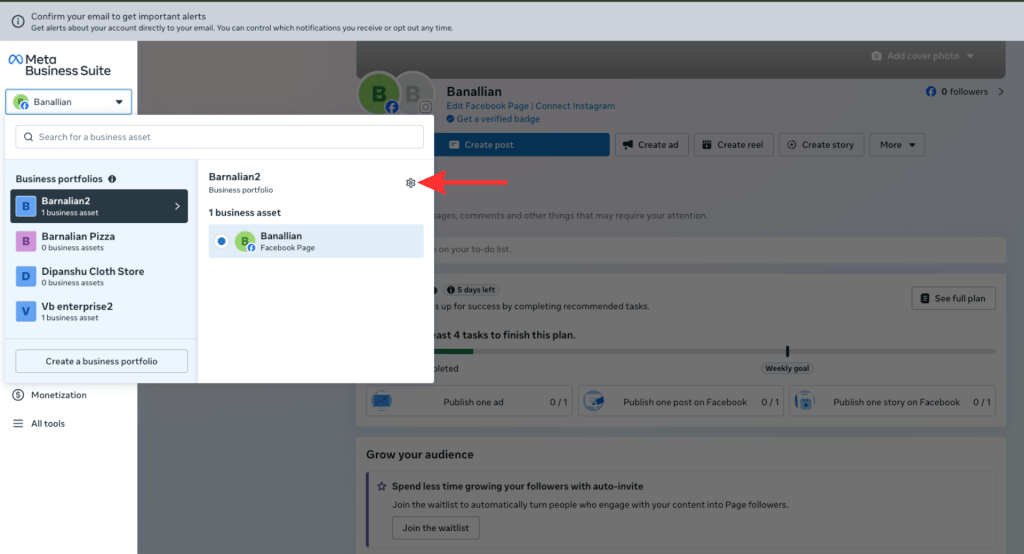
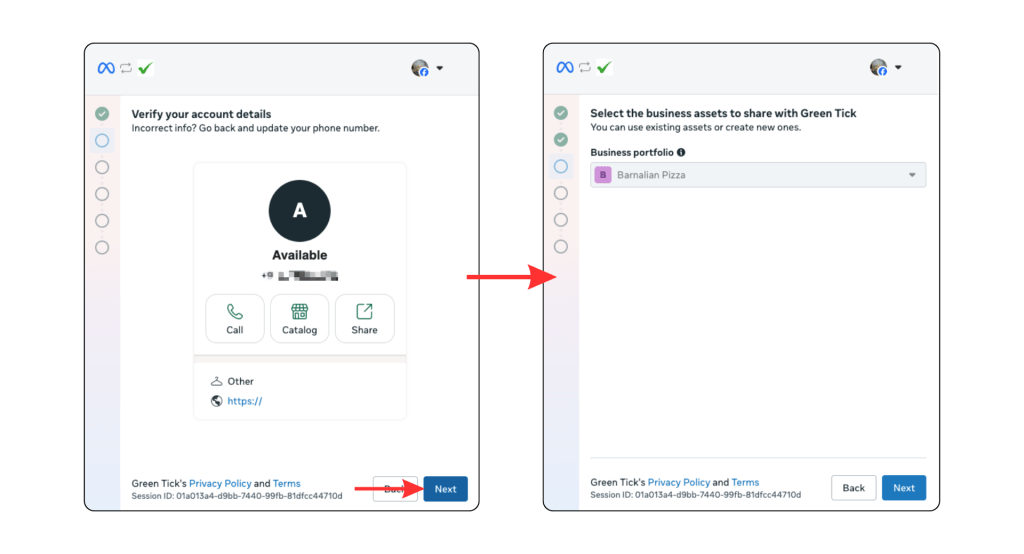
Choose your business portfolio from the dropdown menu in the setup wizard, ensuring your correct business entity is selected.
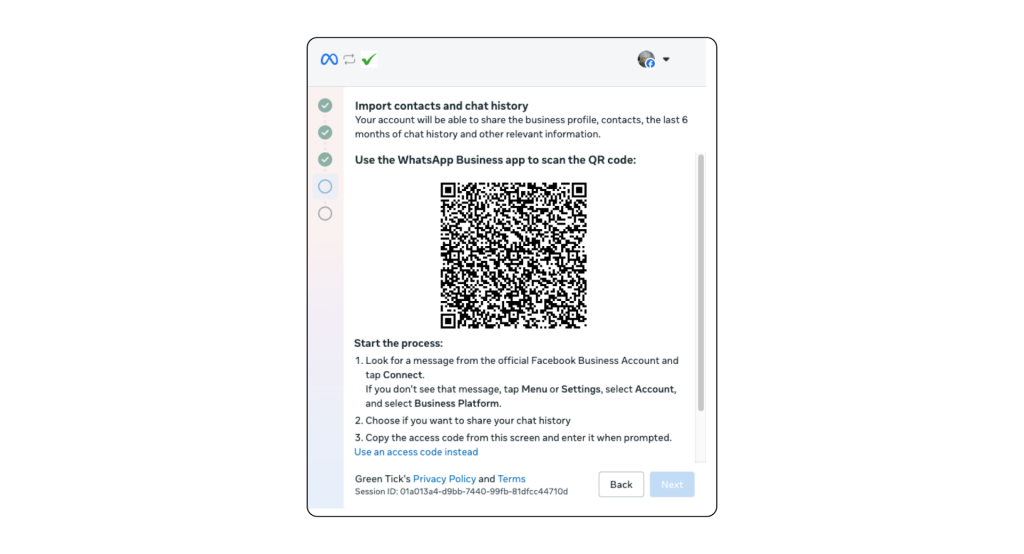
Scan the generated QR code using your mobile phone’s WhatsApp Business app (via Settings > Account > Business Platform) if you want to keep your number active on your phone alongside the dashboard and import your past 6 months of chat history.
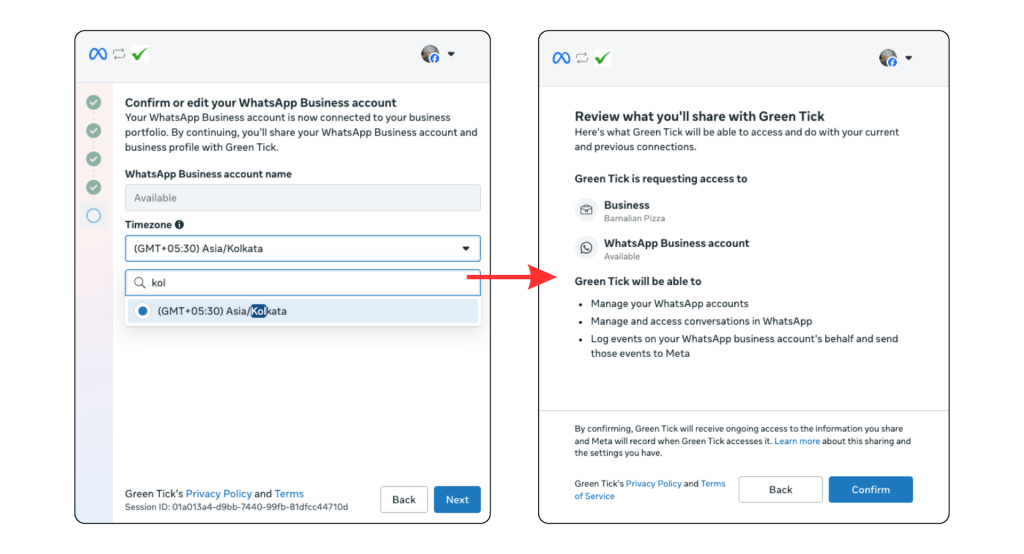
Review your WhatsApp Business account name and select your local timezone (e.g., searching for “Kolkata” to set GMT+05:30 Asia/Kolkata).
Review what Green Tick is requesting access to (managing WhatsApp accounts and conversations), then click Confirm to finalize the connection.
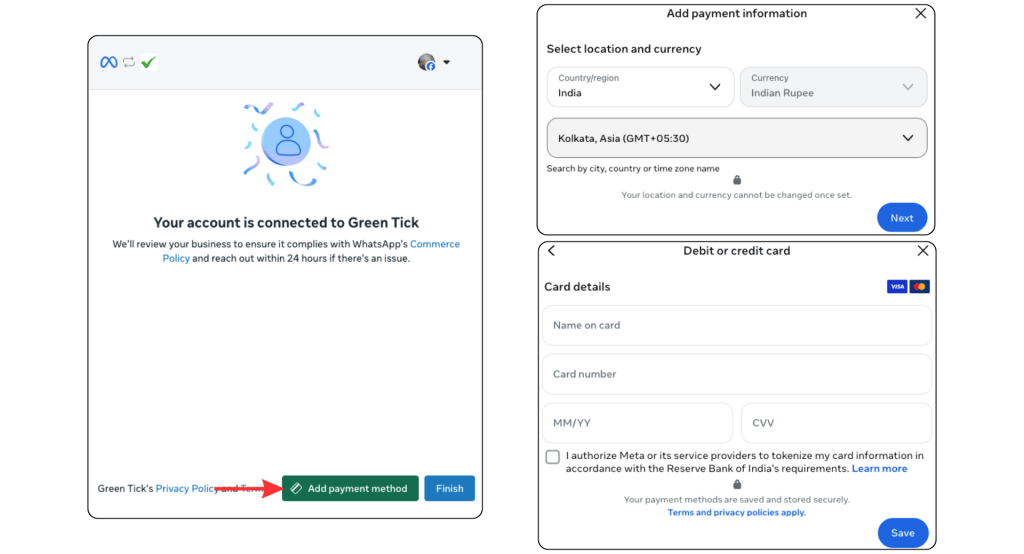
Click Add payment method to link your debit or credit card (Visa/Mastercard) for Meta conversation billing. Alternatively, you can click Finish and complete billing later.
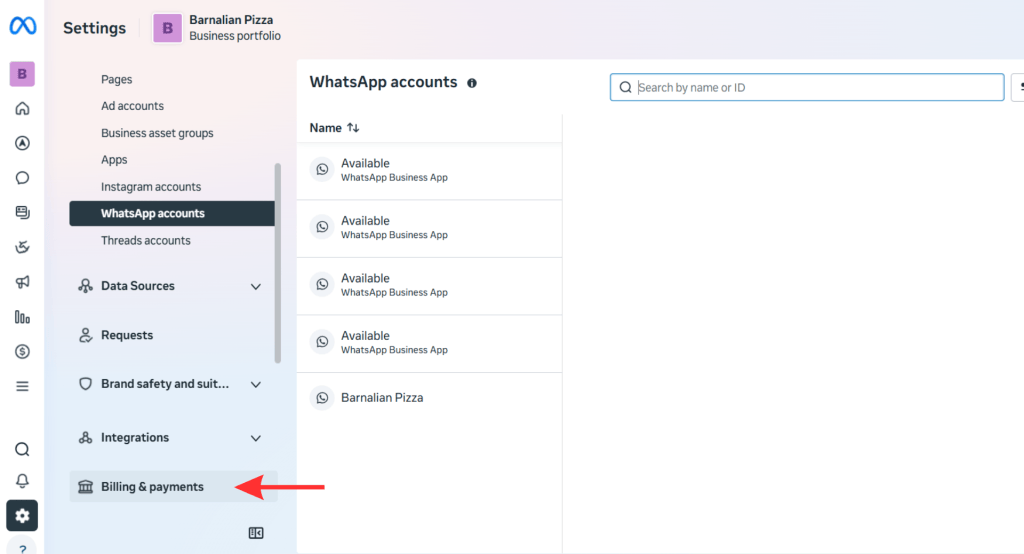
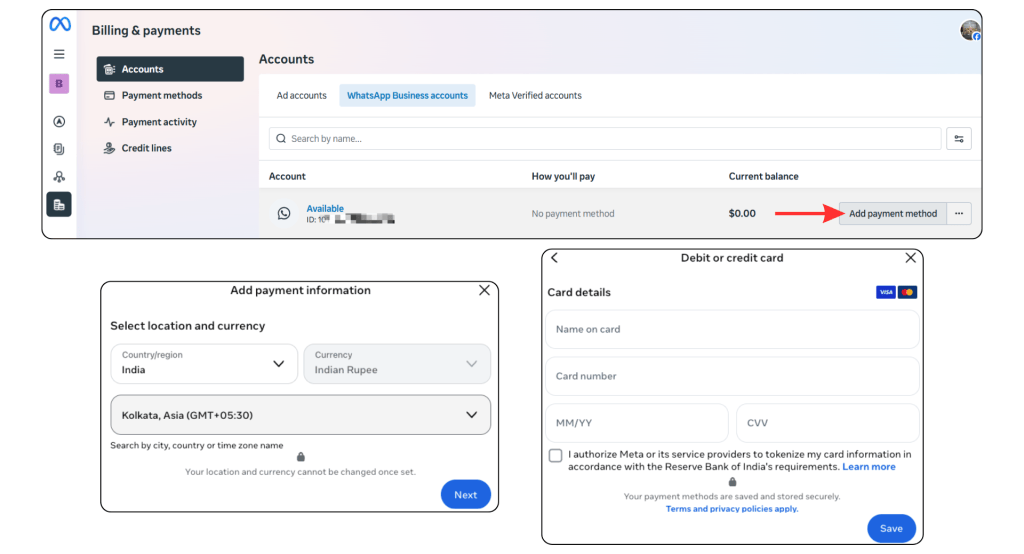
If you clicked finish, you can add your card anytime later by going to Meta Business Suite, clicking on Billing & payments on the left panel, and entering your card details securely.
Official Documentation
The 24-hour customer service window is a WhatsApp platform rule, not a GreenTick one – it starts the moment a customer messages or calls you, and resets if they message again before it expires. Free-form replies only work inside that window.
Once your account is connected and billing is configured, your number is fully integrated with GreenTick. You can now start creating message templates and managing team conversations seamlessly!
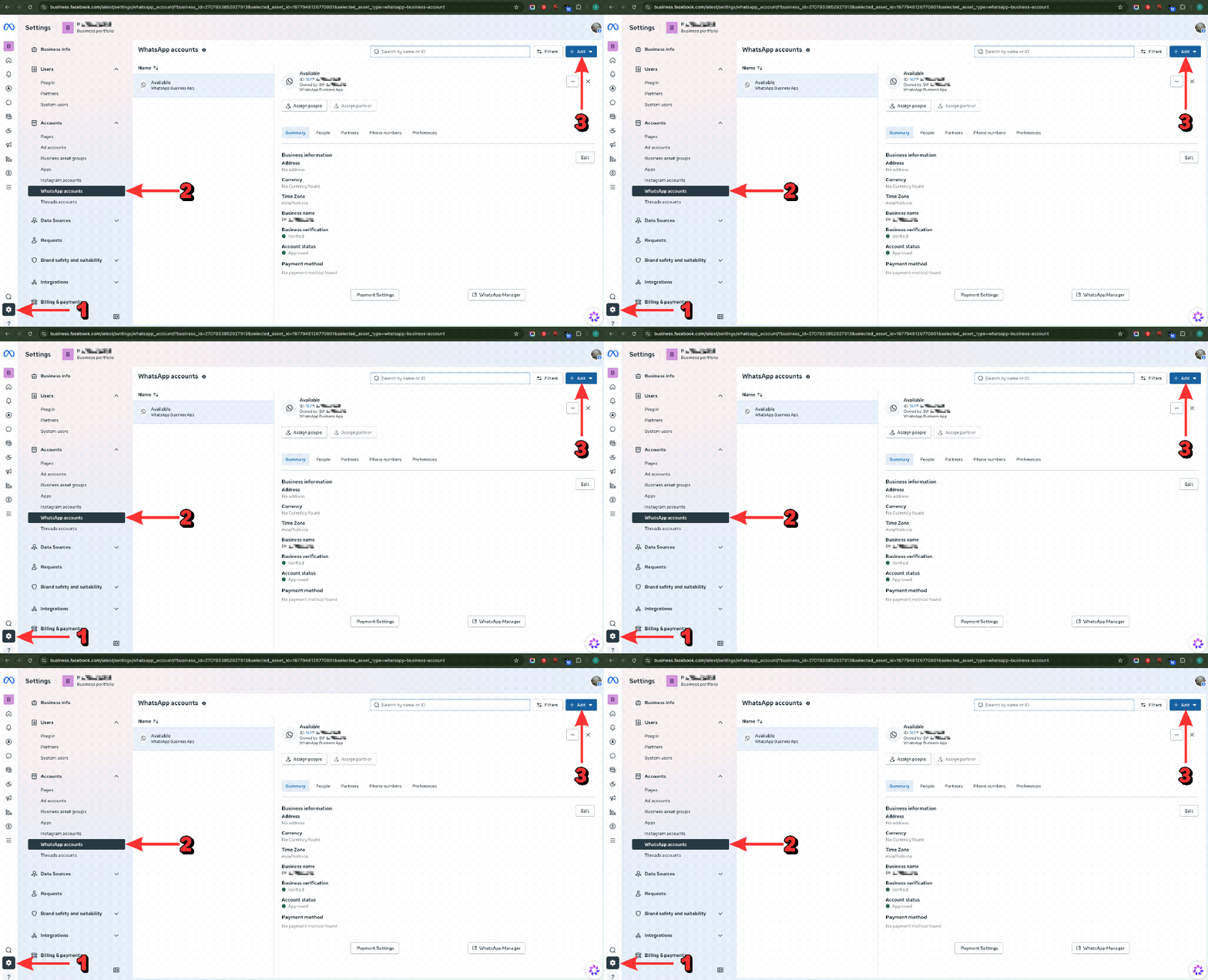
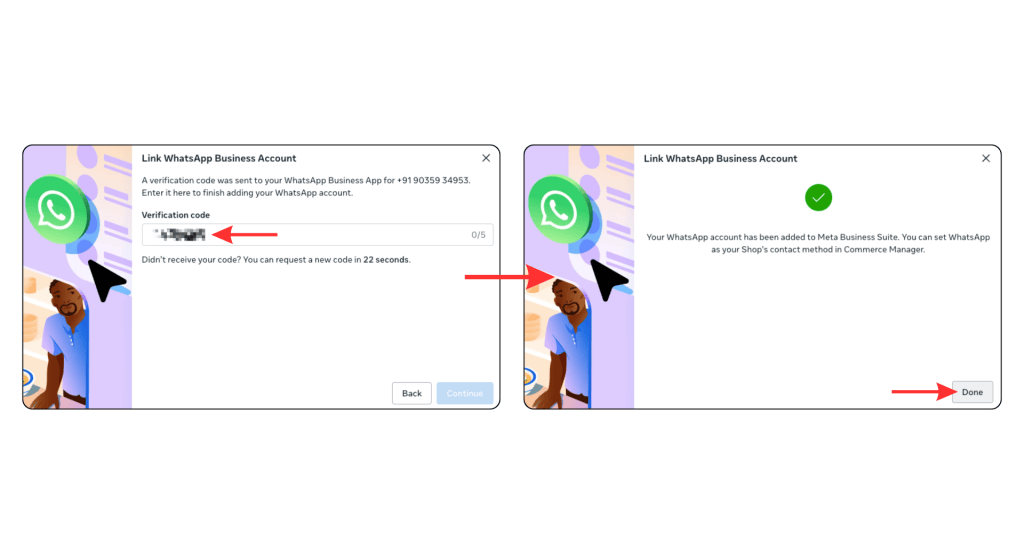
Go to Meta Business Suite settings, navigate to WhatsApp accounts, click “+ Add” in the top right, enter your phone number, and verify it with the OTP code sent via WhatsApp.
Scanning the QR code is optional and is used if you want to enable Coexistence so your number works simultaneously on your mobile phone and the GreenTick dashboard.
Yes. You can click “Finish” during the final step and add your card later by opening Meta Business Suite and going to the “Billing & payments” tab.
WHATSAPP BUSINESS API
Get started today.
* No Credit Card Required
✅ Bulk Broadcast
✅ Mobile Dashboard Access
✅ Shared Team Inbox
✅ Automated Workflow Engine
✅ AI Chat Bot
✅ Personalised Messaging
✅ Scheduled Campaign
✅ Coexistence
Greentick is an official
Meta Business Partner
© 2026 GreenTick | From Hello to Sold. All rights reserved. Made with ❤️ in India.