




Surveys, lead capture, and support forms - built inside WhatsApp, no browser redirect needed. Here's the exact six-step flow to build and publish your first one.
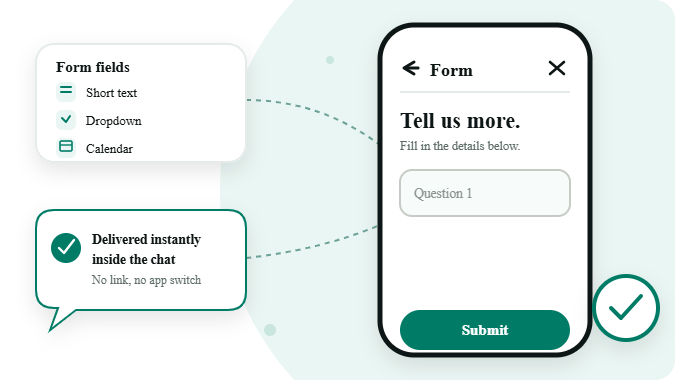
WhatsApp Flows let a customer fill out a real form - text fields, dropdowns, date pickers, even document uploads - entirely inside the WhatsApp chat window. No link to a website, no separate app, no login wall. They tap a button, the form opens natively, and the data comes straight back to you. Here's the exact flow inside GreenTick's Flows builder, from a blank flow to one live customers can complete.
Six steps, from blank flow to published and ready to send.
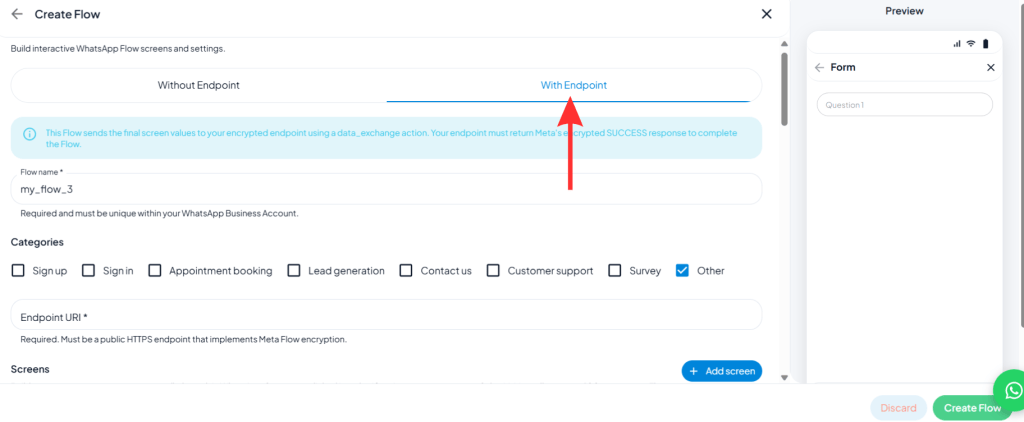
Decide whether your flow needs a server behind it.
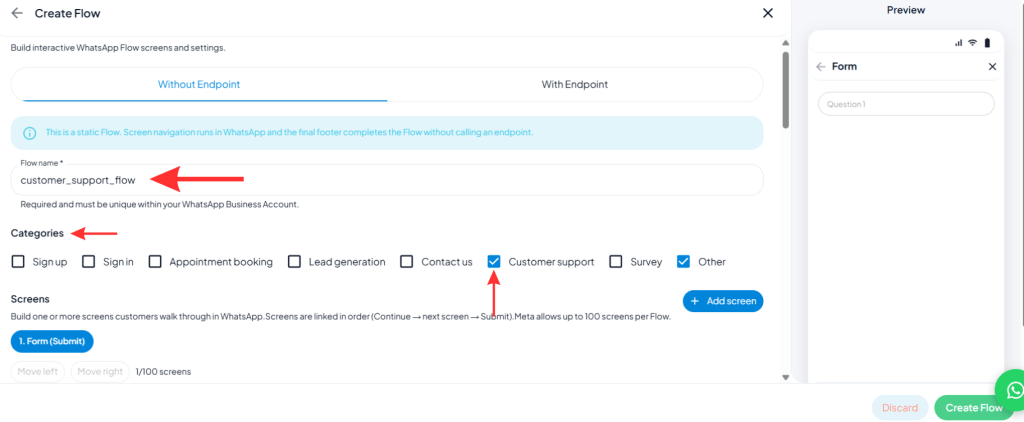
The flow name must be unique within your WhatsApp Business Account. Categories include Sign up, Sign in, Appointment booking, Lead generation, Contact us, Customer support, Survey, and Other – pick whichever fits, or tick more than one.
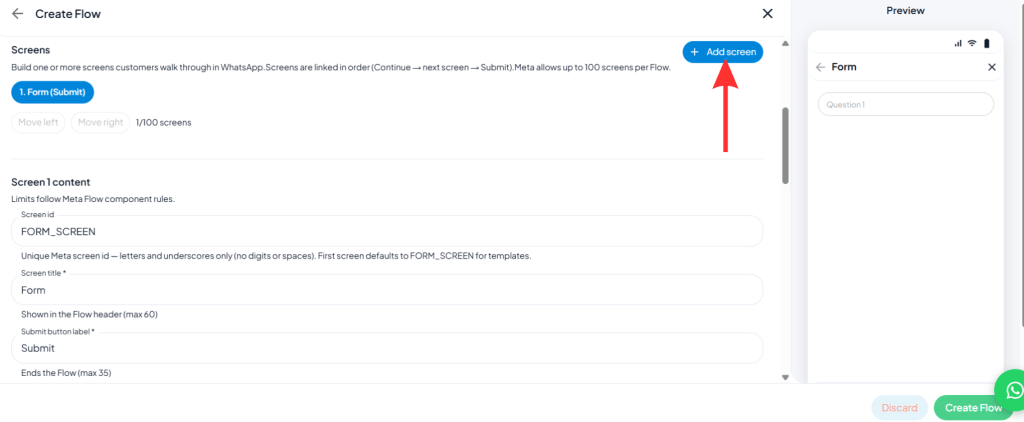
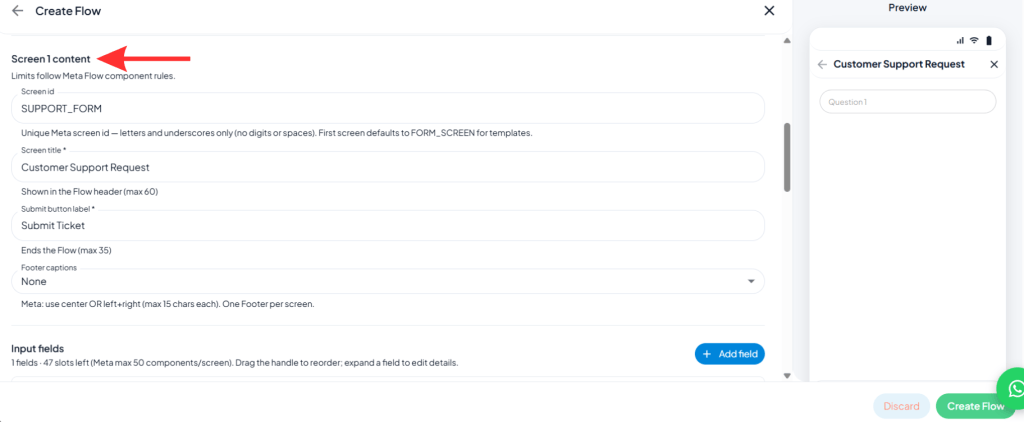
Click Add Screen – the first defaults to a Screen ID of FORM_SCREEN. Set the Screen title (shown in the flow header, max 60 characters), a Heading, Body text, and a Submit button label. You can build up to 100 screens per flow, linked in order.
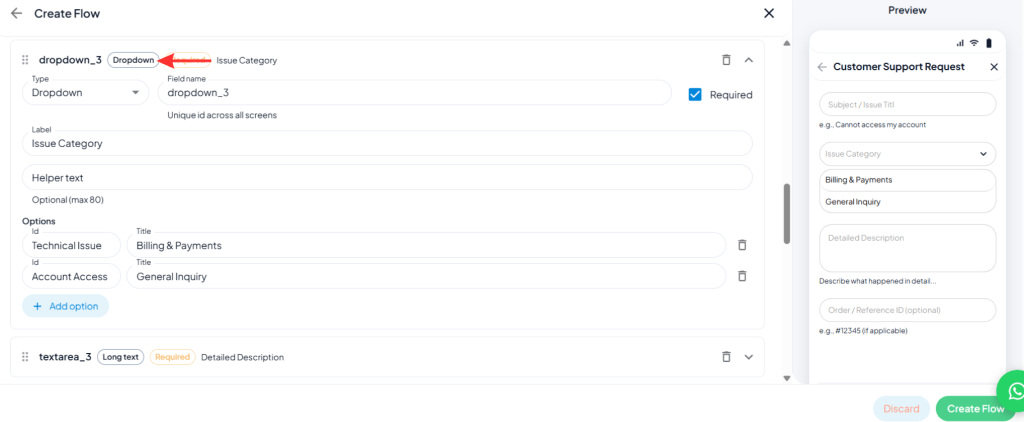
Click Add Field and choose a component – up to 50 per screen.
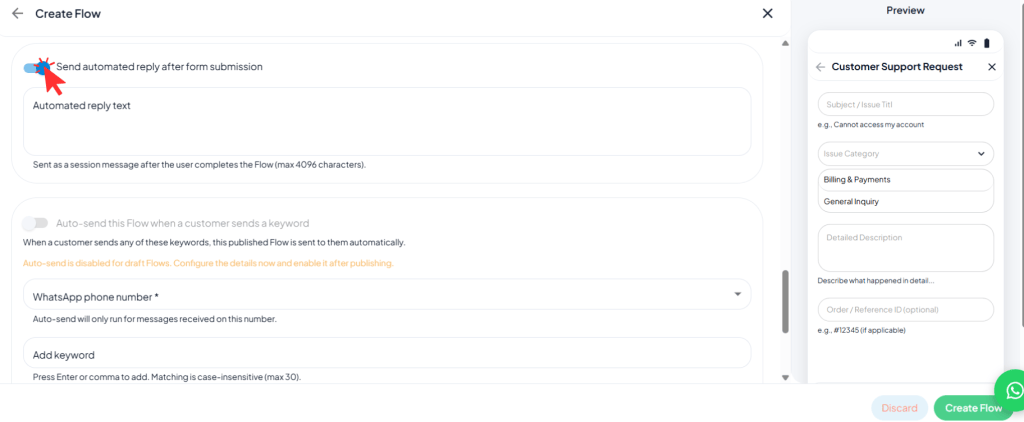
Toggle Send automated reply after form submission and write a short message – it’s sent to the customer as soon as they complete the flow.
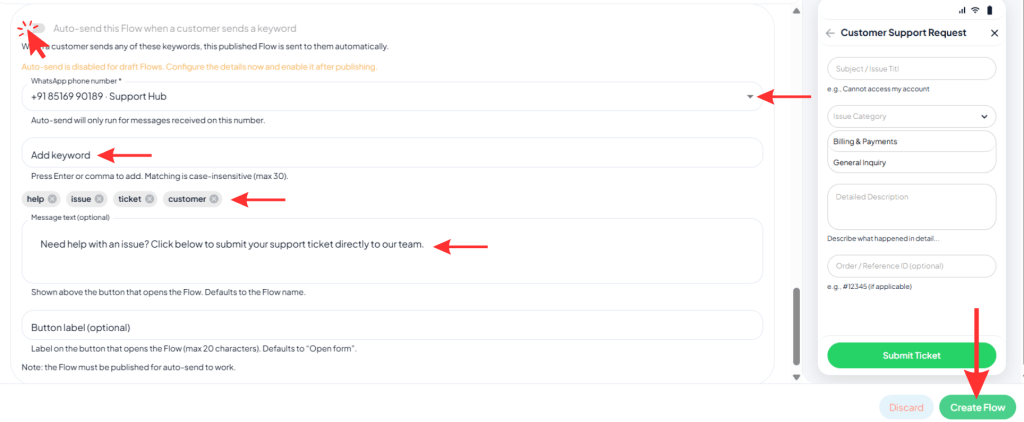
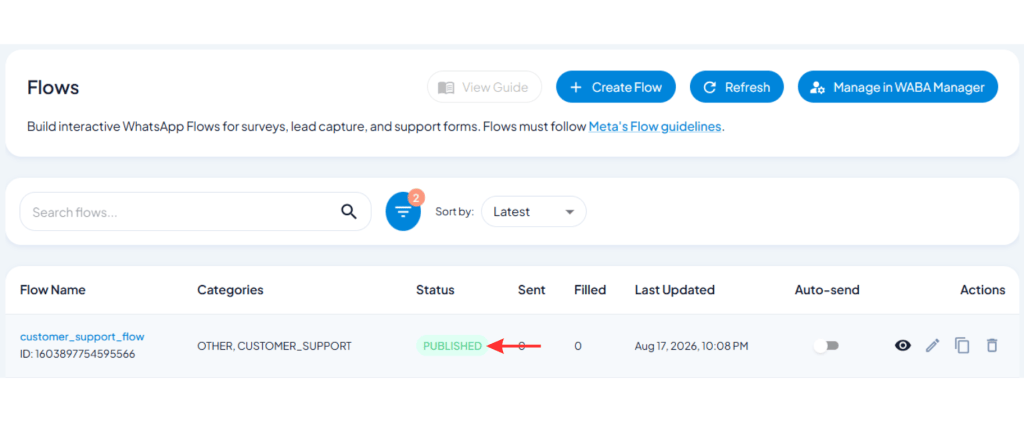
Toggle Auto-send this Flow when a customer sends a keyword, pick the WhatsApp number it applies to, and add trigger keywords – matching is case-insensitive. Add an optional message and button label, then hit Create Flow to publish.
Official Documentation
Meta built Flows for exactly this: structured interactions inside a chat, for use cases like lead generation, appointment booking, and product recommendations. Their own guides include full working examples, like a pre-approved loan flow, that you can adapt for other use cases.
That's a complete WhatsApp Flow, built and published - screens, input fields, and a trigger to send it automatically. Want it to reach more people at once instead of waiting on keyword triggers? Send it as part of a broadcast next.
A structured, multi-screen form that opens natively inside a WhatsApp chat – with text fields, dropdowns, date pickers, and more – so a customer can complete a task like booking, ordering, or submitting a lead without leaving the conversation.
Without Endpoint is a static flow – all screens and logic are defined upfront, no server required. With Endpoint sends each screen’s data to your own HTTPS server in real time, useful when the next screen depends on live data like pricing or availability.
Up to 100 screens per flow, with up to 50 input components on each individual screen.
Yes. Turn on auto-send, choose the WhatsApp number it applies to, and add one or more trigger keywords – matching is case-insensitive, and the flow must be published for auto-send to work.
A flow sent as a message is billed the same way as a normal template message – at the Marketing, Utility, or Authentication rate, depending on the template category it’s attached to.
Short text, email, phone, long text, dropdown, single and multi choice, date and calendar pickers, image and document upload, opt-in, and a few conditional/logic components like Switch and If.
Yes. Each flow in your list shows how many times it’s been Sent and how many Filled, so you can track completion rate at a glance.
Greentick is an official
Meta Business Partner
© 2026 GreenTick | From Hello to Sold. All rights reserved