
How to Use Live Chat, Your WhatsApp Team Inbox
One Number, Your Whole Team, Every Conversation in Sync
Switch numbers, start conversations, send templates mid-chat, and assign every conversation to an owner - all from Live Chat, GreenTick's shared WhatsApp team inbox.
Introduction
Every Conversation, One Shared Screen
Live Chat is GreenTick's shared WhatsApp team inbox - the one screen where your whole team sees, replies to, and manages every customer conversation on your connected numbers, together. When the status reads Connected in green, your number is live and synced - and thanks to Coexistence, it stays synced on your phone's WhatsApp Business App at the same time, not one or the other. Here's exactly how the screen is laid out and how to use it, start to finish.
Walkthrough
How to Use Live Chat
Eight things to know before you send your first reply.
1️⃣ Know the three-panel layout
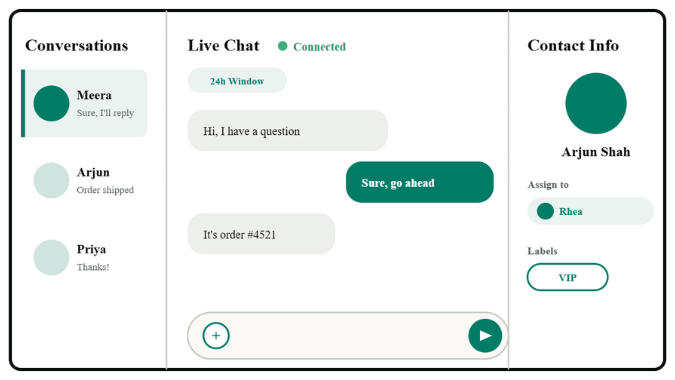
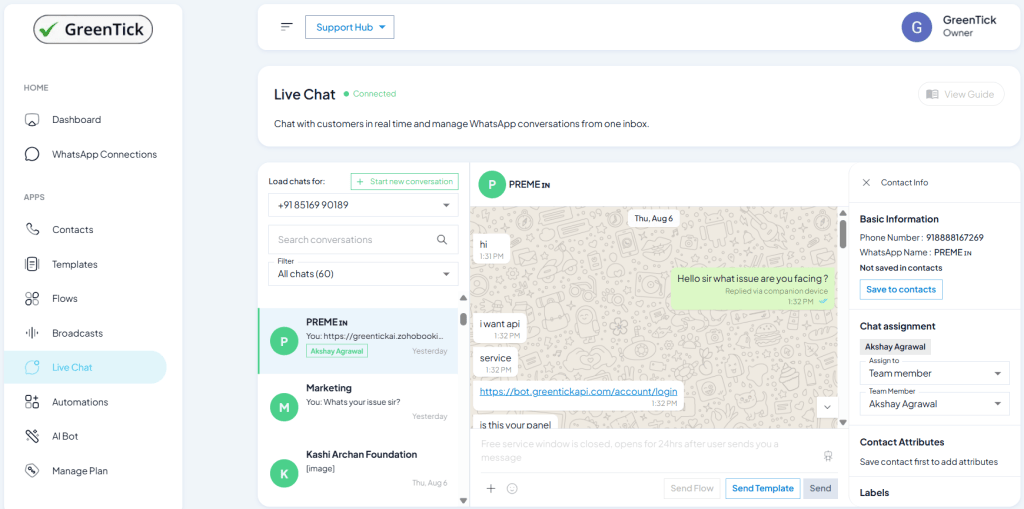
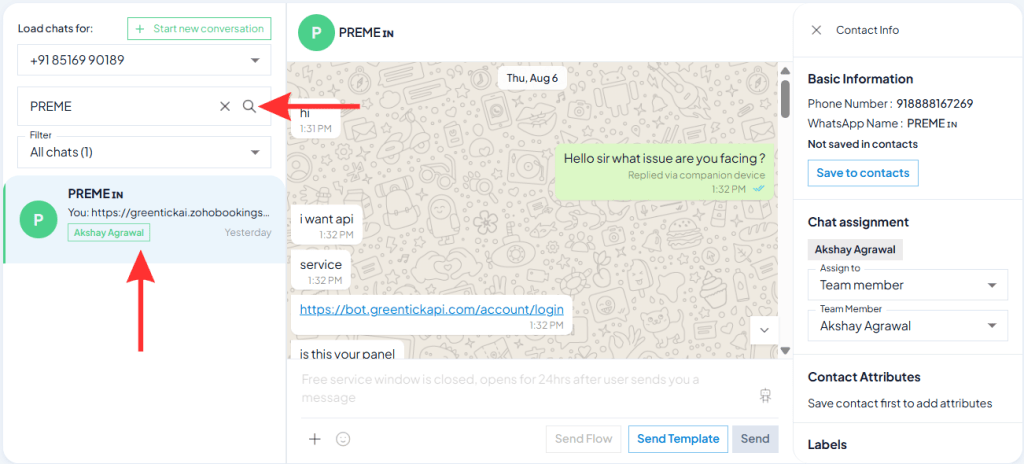
Live Chat is split into three panels: your conversation list on the left, the active chat in the middle, and the contact’s profile on the right – everything visible at once, no switching screens.
2️⃣ Switch numbers with "Load chats for"
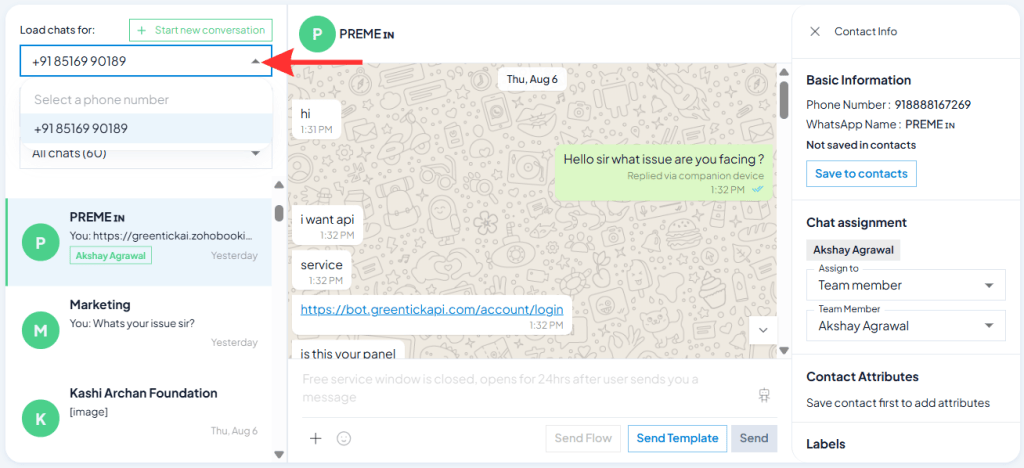
If you’ve connected more than one WhatsApp number, use the Load chats for dropdown at the top of the conversation list to switch between them.
3️⃣ Start a new conversation
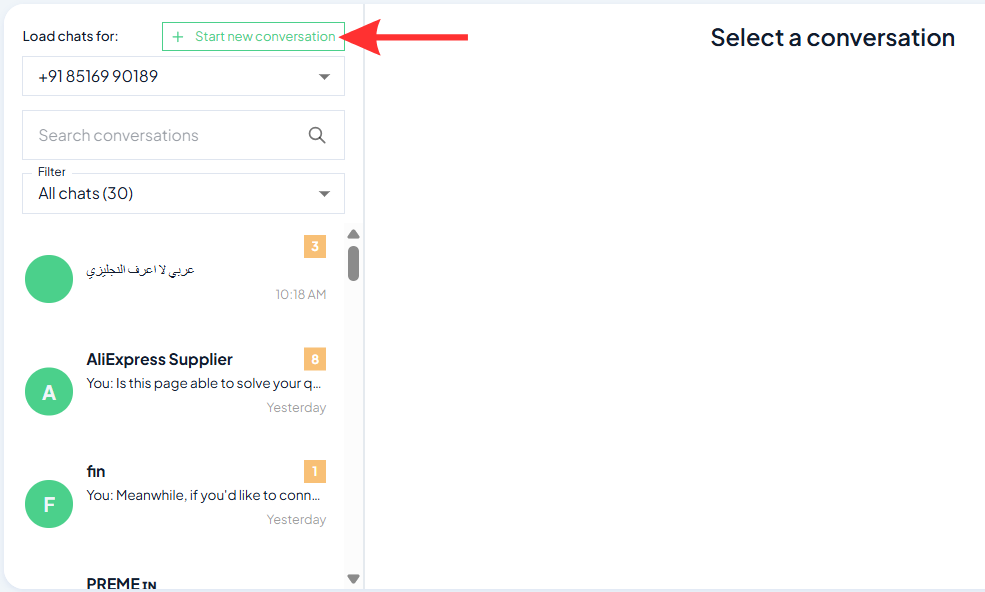
Click Start New Conversation. Enter a number with country code, or search and select someone directly from your contact list, then hit Start Chat. Since you’re messaging first, this always needs an approved template.
4️⃣ Send messages, files, and emojis
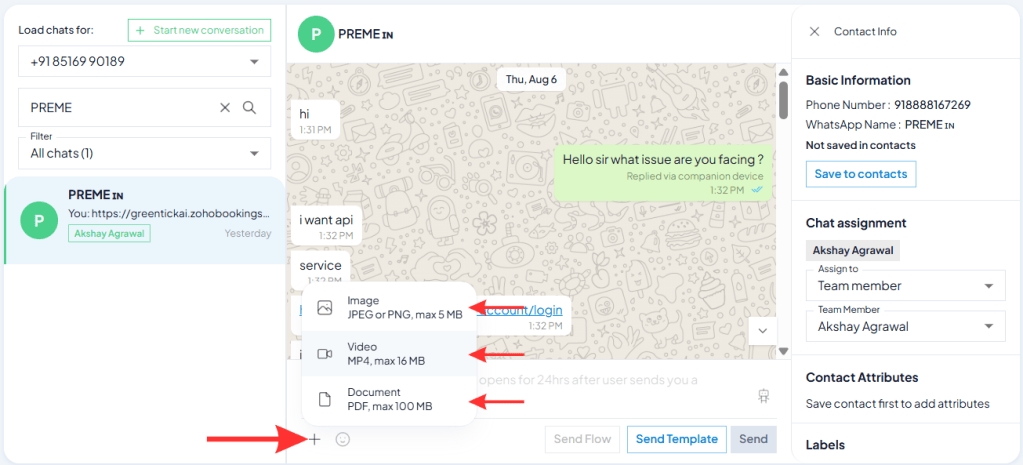
Type in the message bar at the bottom of the active chat. Use the + icon to attach a file, and the emoji icon to add one to your message.
- Image: JPEG or PNG, up to 5MB
- Video: MP4, up to 16MB
- Document: PDF, up to 100MB
5️⃣ Respect the free service window
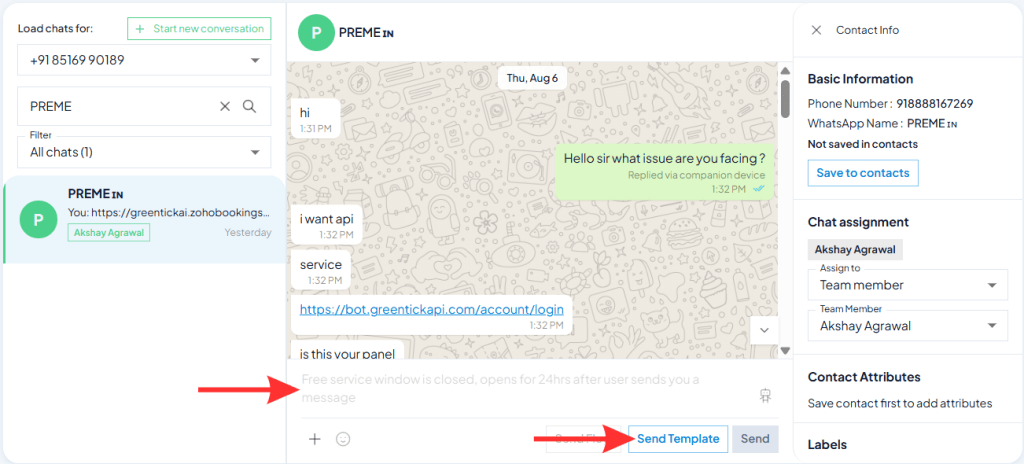
A countdown at the top of the chat shows Free service window closes in – you can send free-form replies for 24 hours after a customer’s last message. Once it closes, the chat shows “Free service window is closed, opens for 24hrs after user sends you a message” – you’ll need to Send Template to reopen it.
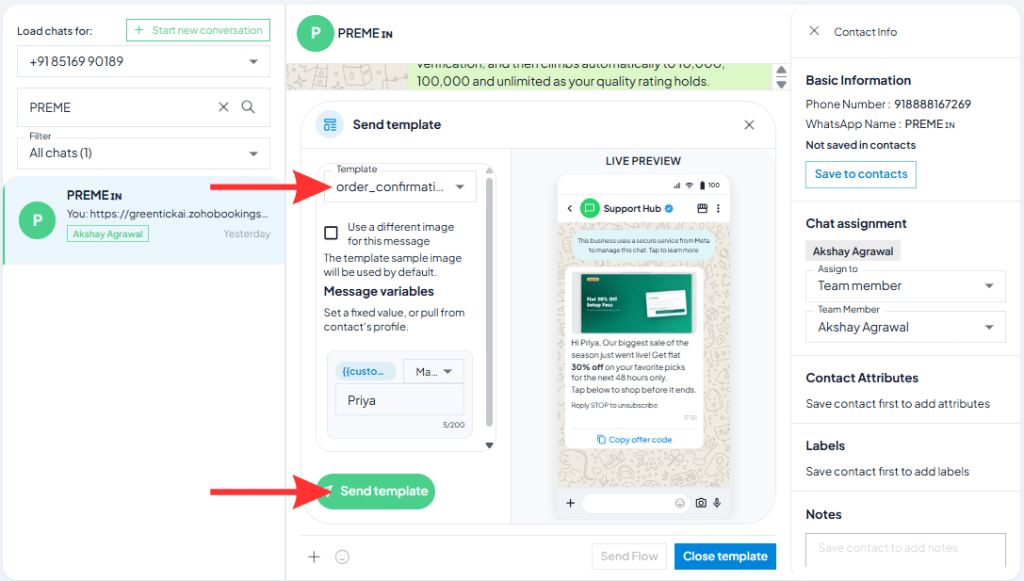
6️⃣ Send a template mid-chat
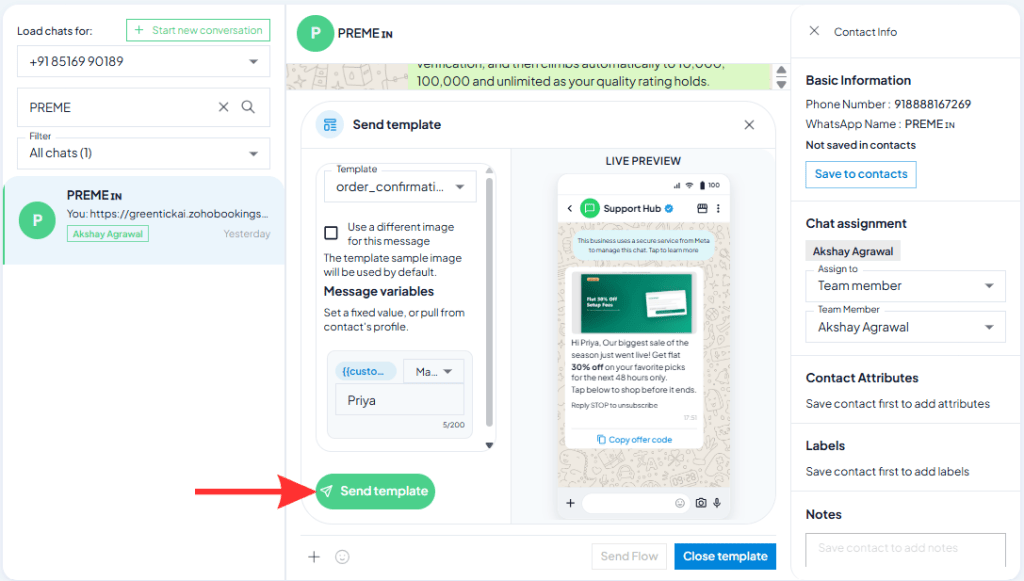
Click Send Template and pick one from the dropdown – every approved template appears with a live preview on the right.
- Header image: Use the default sample image, or check “Use a different image” to upload a JPEG/PNG or paste a URL.
- Variables: Choose Manual to type a value like a name, or From Contact to pull it automatically from the contact’s saved profile.
- Send: Hit Send Template – it goes instantly.
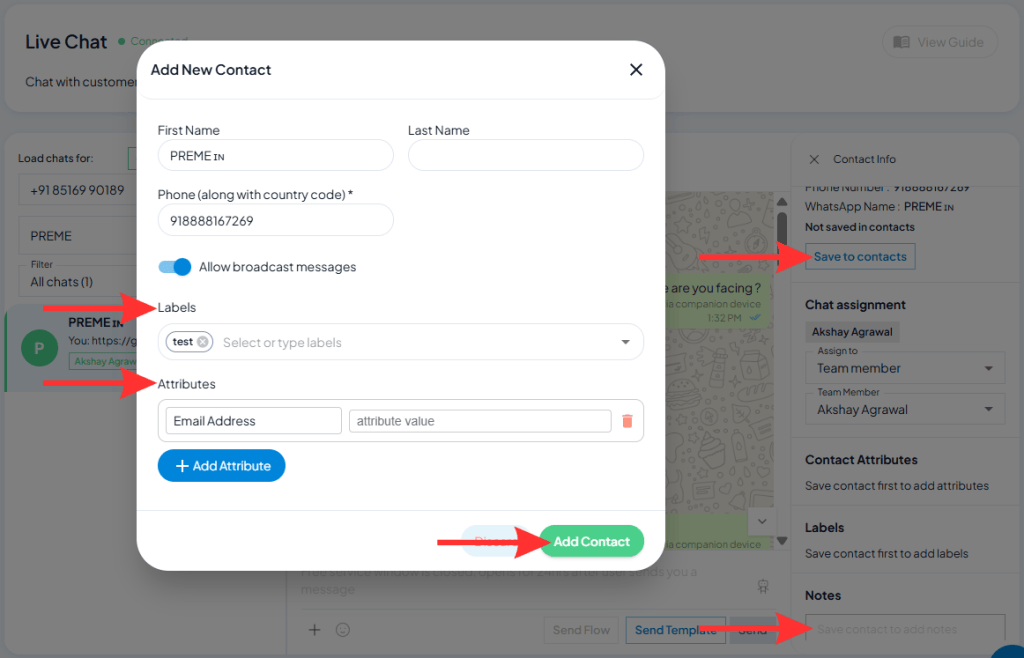
7️⃣ Manage the contact from the right panel
See Basic Information for the number and WhatsApp name. If they’re not saved, click Save to contacts. Add Contact Attributes and Labels, or use Notes to leave internal context for your team – customers never see it.
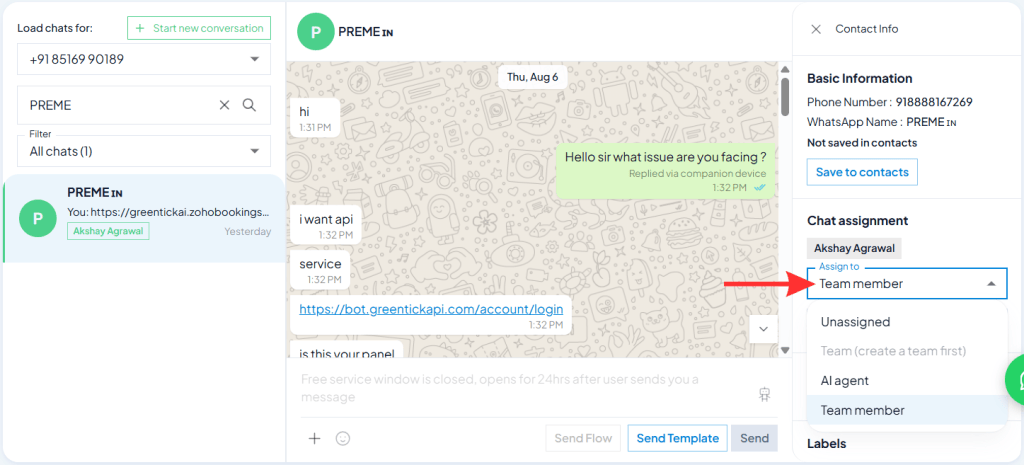
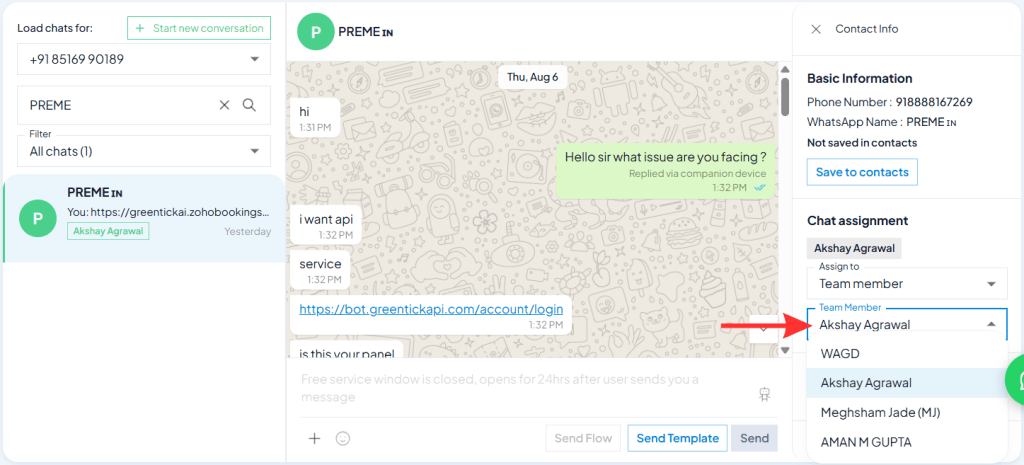
8️⃣ Assign the chat to an owner
Under Chat Assignment, set Assign To to a Team Member (then pick who) or an AI Agent. The assigned person shows as a tag on the conversation, so the whole team knows who owns it – nothing falls through the cracks.
Good to Know
Straight From Meta
Official Documentation
The 24-hour customer service window is a WhatsApp platform rule, not a GreenTick one – it starts the moment a customer messages or calls you, and resets if they message again before it expires. Free-form replies only work inside that window.
Wrapping Up
Your Team's Inbox Is Ready
That's the full picture of Live Chat - switching numbers, starting chats, sending templates mid-conversation, and assigning every chat to an owner. Since replying outside the free window needs an approved template, it's worth having one ready - build a WhatsApp message template next.
FAQs
Frequently Asked Questions
What is Live Chat in GreenTick?
GreenTick’s shared WhatsApp team inbox – a screen where multiple team members can see and reply to WhatsApp conversations from one connected number, instead of everyone needing their own phone with the number logged in.
Does GreenTick work on both desktop and phone at the same time?
Yes, through Coexistence. Your number stays active on the WhatsApp Business App on your phone while also running through Live Chat on desktop, synced in real time – not one or the other.
What happens when the 24-hour window closes?
You can no longer send a free-form reply. Click Send Template to reopen the conversation with an approved template, which starts a fresh 24-hour window once the customer responds.
How do I send a template message from an ongoing chat?
Click Send Template, pick an approved template from the dropdown, choose an image (default or your own) if it has one, fill in any variables manually or pull them from the contact’s saved profile, then hit Send Template.
Can I assign a chat to a teammate or an AI agent?
Yes. Under Chat Assignment in the contact panel, set Assign To a Team Member or an AI Agent. The assigned name shows as a tag on the conversation so the whole team knows who owns it.
What file types and sizes can I send in a WhatsApp chat?
Images (JPEG or PNG) up to 5MB, videos (MP4) up to 16MB, and documents (PDF) up to 100MB.
Can I edit contact details while chatting?
Yes. The right panel shows Basic Information, Contact Attributes, Labels, and Notes for the contact you’re chatting with – click Edit contact to update any of it directly, or Save to contacts if they aren’t saved yet.
Do I need a template to start a new conversation?
Yes. Since you’re messaging someone who hasn’t messaged you first, it counts as business-initiated, which always requires an approved template.