
Pick a template, choose your audience, and send - or schedule it for later. Here's exactly how to send bulk WhatsApp messages the compliant way, with the official Cloud API.
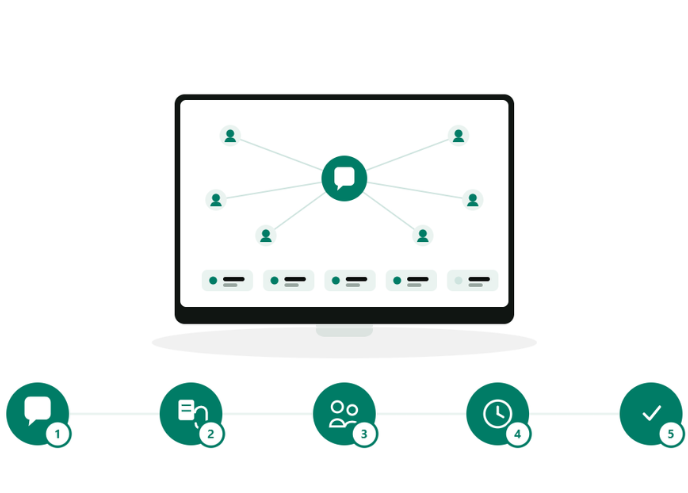
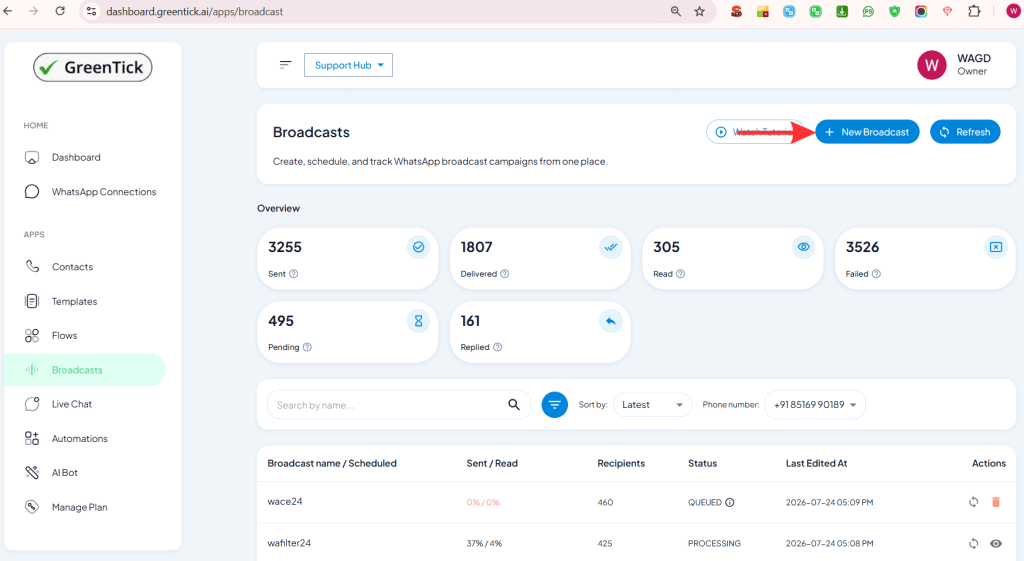
Once your contacts are organized and your template is approved, you're ready to send bulk WhatsApp messages through GreenTick. Each recipient gets it as a private, personal message, not a group chat, and you can watch results come in live. This walks through the exact dashboard flow: five steps from New Broadcast to tracking delivery.
Five steps, start to finish.
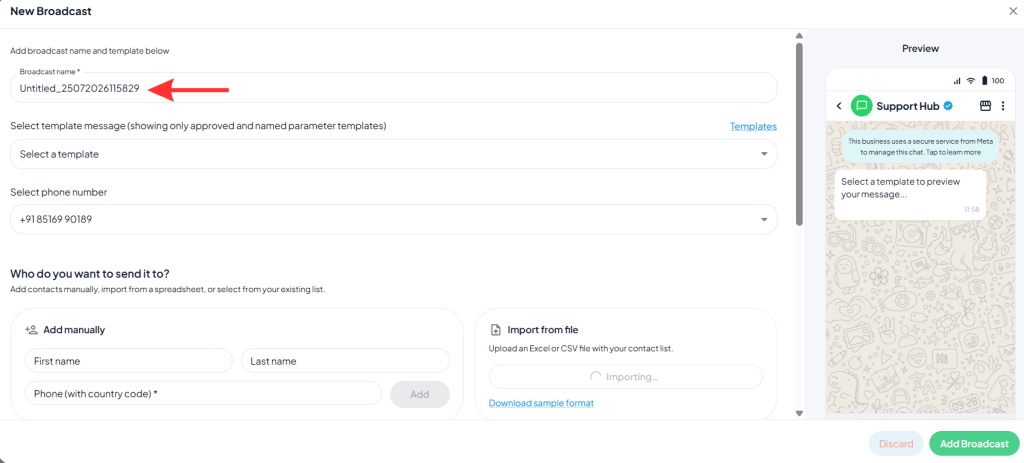
The broadcast name auto-fills with a timestamp-based placeholder (e.g. Untitled_25072026115829), which you can rename to something clear like your campaign name.
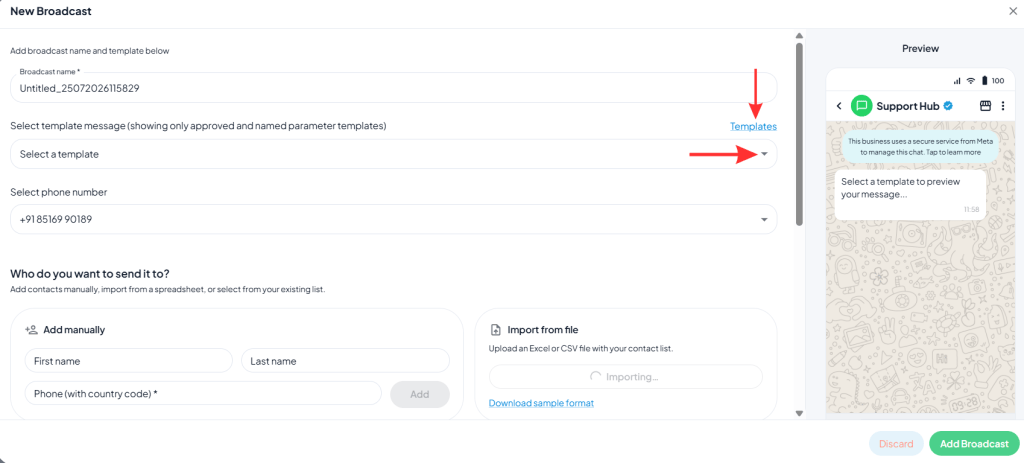
Select your template and sending number
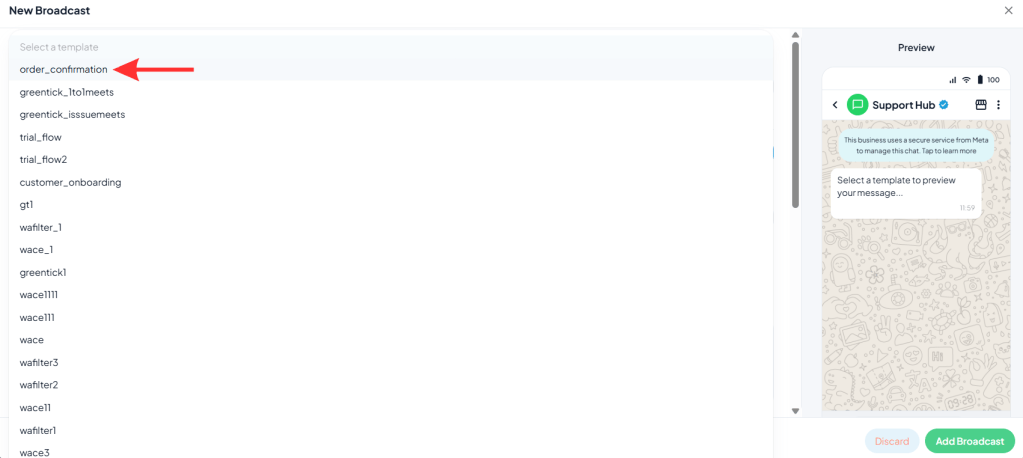
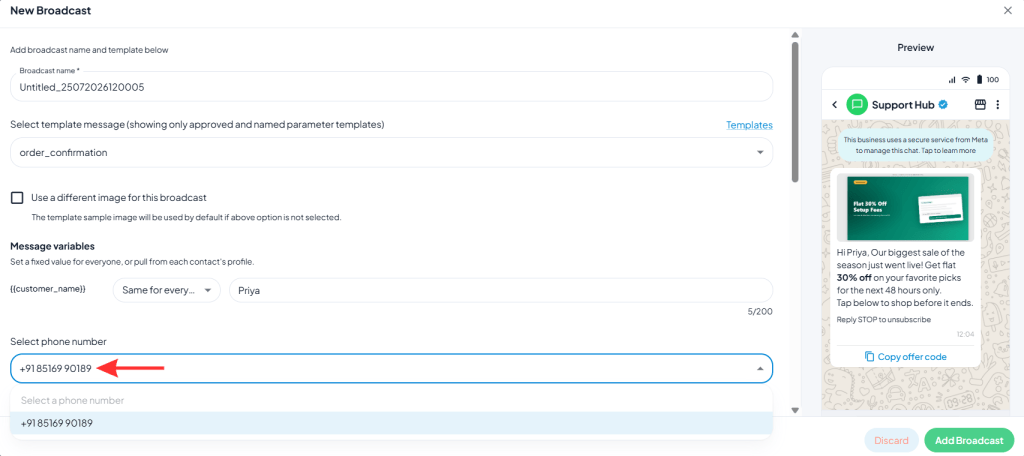
Choose from the template dropdown, it only shows approved templates built with named variables. No template yet? Click the Templates shortcut link next to the dropdown to create one without leaving the broadcast screen. Then select which connected WhatsApp number this broadcast sends from.
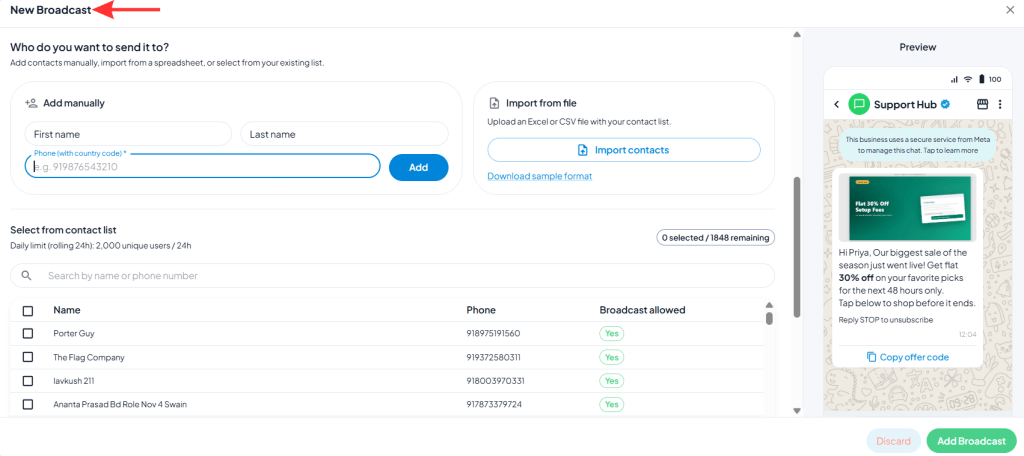
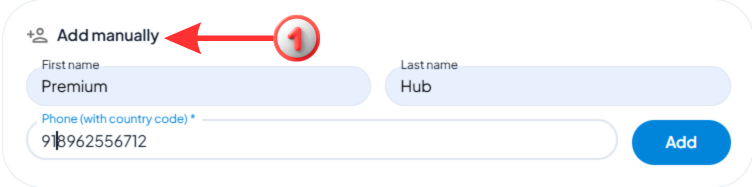
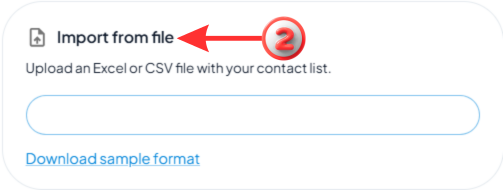
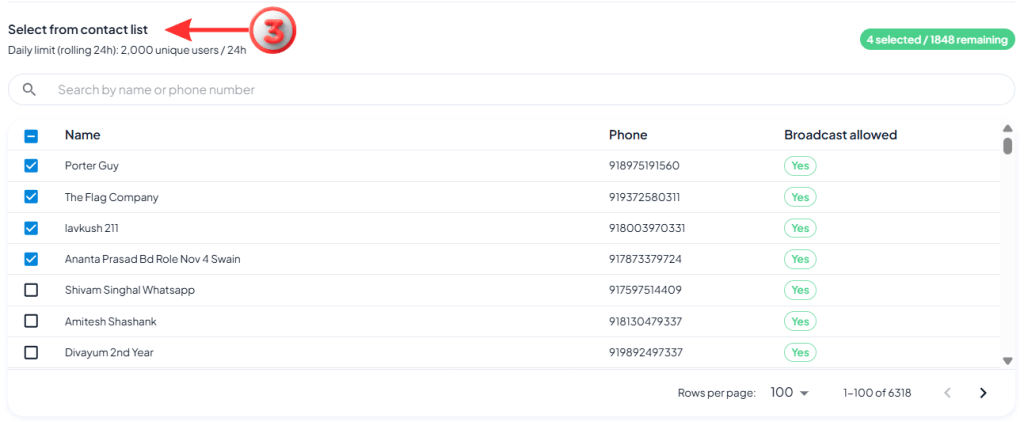
Pick one of three ways to build your send list for this broadcast. Three Ways to Choose Your Audience:
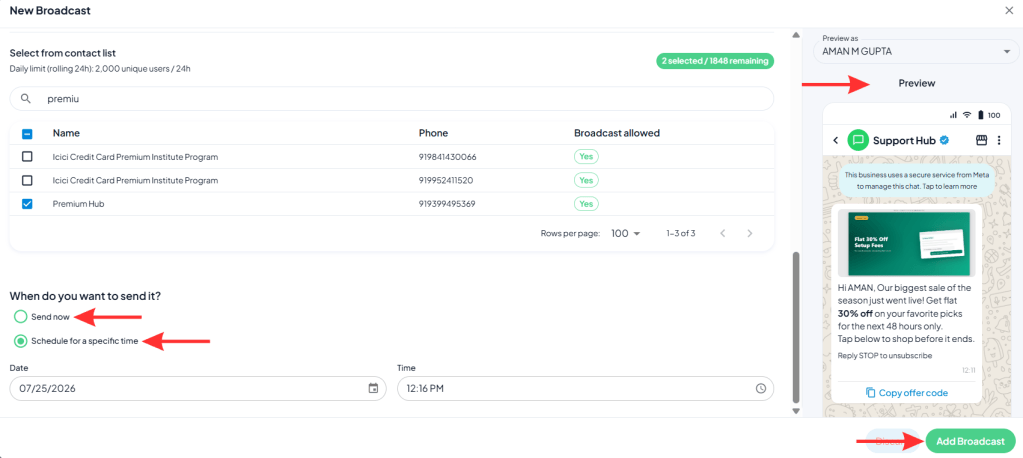
A live preview panel on the right updates automatically as you select a template, no extra click needed. It also shows the auto-added “Reply STOP to unsubscribe” line Meta requires on marketing templates. Choose Send now to go out immediately, or Schedule for a specific time to set a date and let GreenTick handle it automatically.
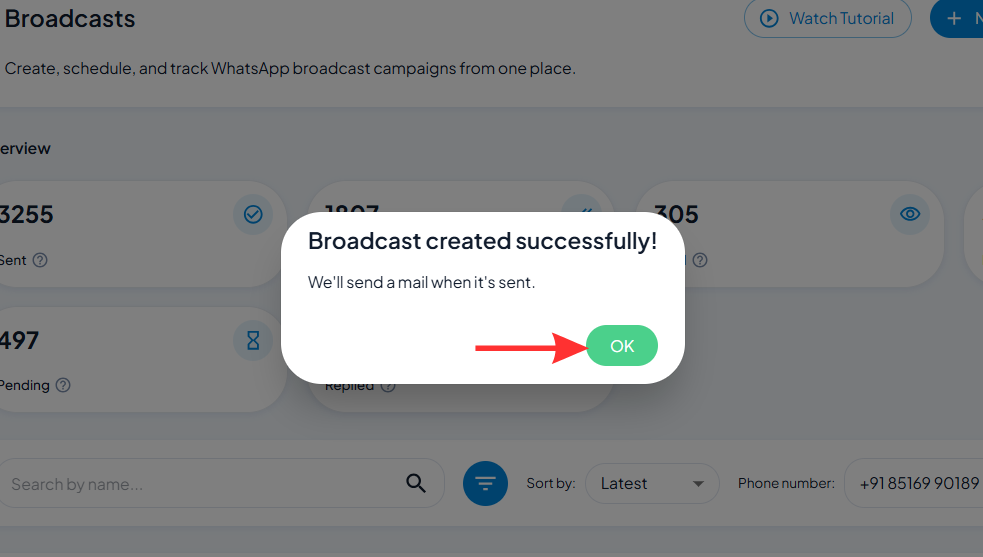
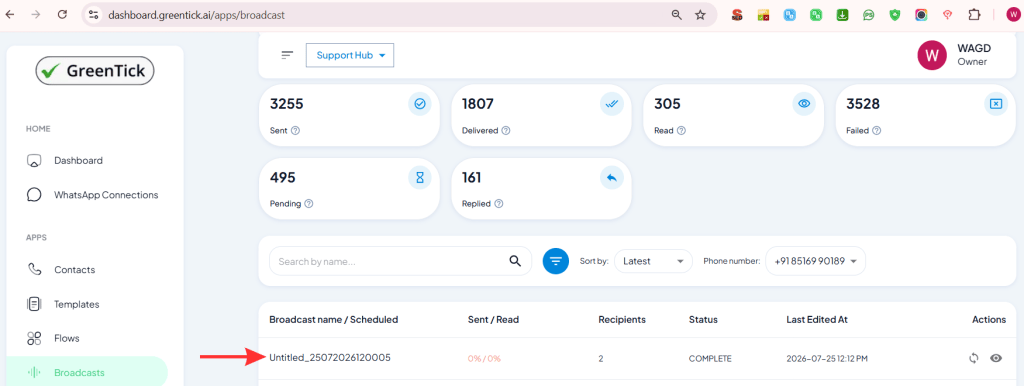
Watch Sent, Delivered, Read, Replied, and Failed update in real time from the Broadcasts screen as your campaign goes out.
Official Documentation
Bulk sends only work with approved templates – it’s the only message type Meta allows outside an open 24-hour conversation window. Every broadcast also feeds your template’s quality rating, which affects how many people you can message per day.
That's the full flow to send bulk WhatsApp messages in GreenTick, from picking a template to watching delivery in real time. If your contact list still needs organizing first, start with your WhatsApp contact list - or head to Template Manager to build the message this broadcast will send.
It’s the database of customer names and numbers a business uses to send template messages and track conversations on the WhatsApp Business API – stored in your dashboard, not on a phone.
No – Meta charges per conversation based on the template category (Marketing, Utility, or Authentication), and your BSP typically charges a software subscription on top.
A group is one shared thread where everyone sees everyone else’s messages and replies. A broadcast sends the same message to many contacts individually and privately – no one knows who else received it.
Common causes: the contact hasn’t opted in, their number is invalid or unreachable, or your account has hit its current messaging tier limit. Check the Failed counter for a breakdown.
It depends on your account’s messaging tier, which starts at 250 unique conversations in a rolling 24-hour period and scales up as your quality rating and usage history improve.
Yes. At the send step, choose a date and time instead of sending immediately, and GreenTick sends it automatically when that time arrives.
It’s a quick compliance check. A green Yes means that contact has valid opt-in on file and can legally receive a business-initiated message from you.
Greentick is an official
Meta Business Partner
© 2026 GreenTick | From Hello to Sold. All rights reserved. Made with ❤️ in India.