
Bulk WhatsApp Broadcast · Official WhatsApp API
WhatsApp Broadcast That Lands as a Personal Chat.
Send one approved template to your whole opt-in list at once. Each person gets it privately, with their own name, your images and tap-to-act buttons, and you watch every delivery, read and reply come in live.
3
template categories
5
live counters per campaign
0%
markup on Meta charges

What is a WhatsApp broadcast?
One message, sent privately to your whole audience.
A WhatsApp broadcast sends the same approved message to many contacts at once, but each person receives it in their own private chat, not a group. Nobody sees who else got it, and every reply comes back only to you.
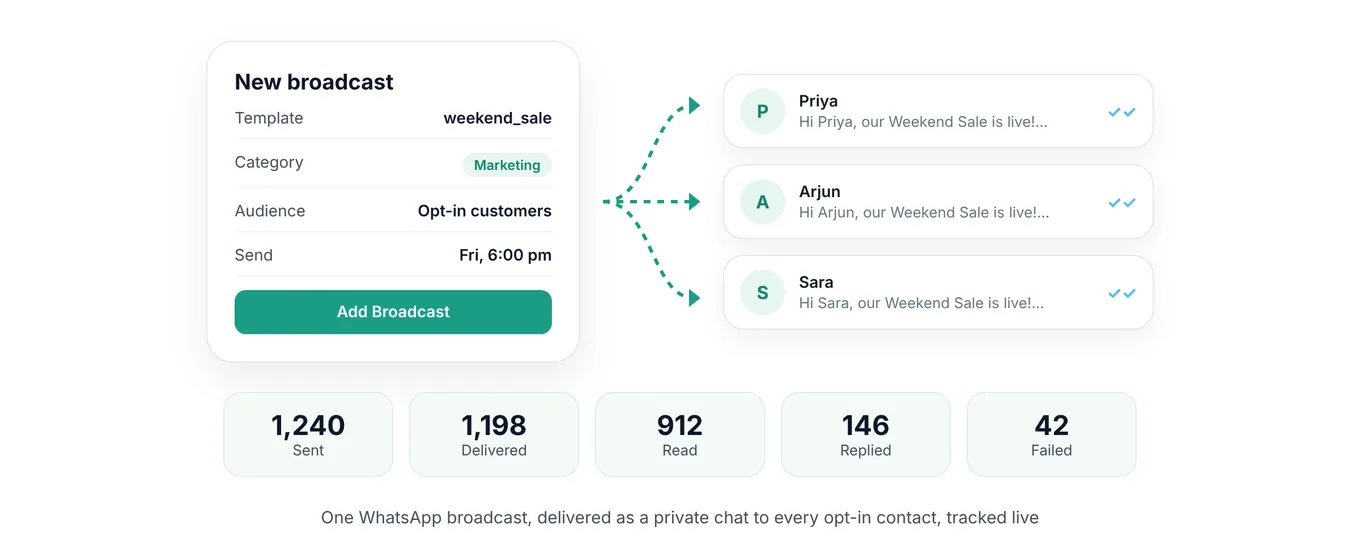
1. An approved template
Every broadcast uses a message template that Meta has reviewed and approved. It is the only message type allowed when a customer has not messaged you in the last 24 hours.
2. Your opt-in audience
Add contacts by hand, import an Excel or CSV file, or pick from your saved contact list. Only message people who agreed to hear from you.
3. Live results
Watch Sent, Delivered, Read, Replied and Failed update in real time as the campaign goes out.
Template categories
Marketing, utility or authentication: pick the right category.
Every template belongs to one of three categories. The category decides what the message can say, how Meta reviews it and what you pay per message.

Promote and sell
Marketing templates
Any message that promotes, sells or brings a customer back: offers, launches, announcements and invites. It is also the default category, so a template that doesn't clearly fit utility or authentication is treated as marketing.
Best for
Sales and discount offers
New arrivals and product launches
Abandoned cart and win-back nudges
Event, webinar and store-visit invites
Example message
Hi Priya, our Weekend Sale is live! Get up to 30% off new arrivals until Sunday midnight.
Shop the sale
Pricing: The highest per-message rate in most countries, set by the recipient's country.
Good to know: Send only to contacts who opted in to offers. WhatsApp may also hold back a marketing message from someone who has already received several from businesses recently.
Updates customers expect
Utility templates
Messages about something the customer already did or asked for, such as an order, a booking, a payment or an account change. Each one must be specific to that customer and that transaction, with no promotional content.
Best for
Order confirmations and receipts
Shipping and delivery updates
Appointment and booking reminders
Payment due and payment received alerts
Example message
Hi Priya, your order #4821 has shipped and will arrive on Thursday.
Track order
Pricing: Far lower than marketing in most countries, with volume discounts as your utility sends grow.
Good to know: Add a discount, an upsell or a "shop now" line and it becomes marketing, charged at the marketing rate.
Verify identity
Authentication templates
One-time passcodes that confirm it is really your customer, for logins, sign-ups or account recovery. Meta provides fixed wording for security: you add the code, a copy-code button and an optional expiry time.
Best for
Login and sign-up codes
Two-step verification
Password and account recovery
Verifying a new device or number
Example message
482915 is your verification code. For your security, do not share this code.
Copy code
Pricing: Usually priced close to utility, with volume discounts. Some countries have a separate rate for codes sent from a business abroad.
Good to know: Use it only for passcodes. Links, media and promotional text are not allowed in authentication templates.
The mistake most people make: adding a discount code to an order update and submitting it as utility. A template that mixes a transactional update with a promotion is treated as marketing, so keep utility templates purely about the customer's order, booking or account.
Inside a template
What you can put in a broadcast template.
Build it once in Template Manager with a live phone preview, submit it, and reuse it for every campaign.
Header (optional)
Text, image, video or document at the top, like a product photo or a PDF price list.
Body
The main message. Use bold, italic or strikethrough to highlight what matters.
Variables
Placeholders like First Name or a custom attribute, filled in for each contact, so Priya sees "Hi Priya".
Footer (optional)
A short line under the message, useful for disclaimers or opt-out text.
Buttons
Links or call buttons that open a page or dial your number, or quick replies the customer taps to answer.
Meta approval
GreenTick sends the template straight to Meta. Approval usually takes a few hours, occasionally up to 24, and then it is ready for every campaign.
Campaign ideas
WhatsApp broadcast ideas, by category.
Start with the campaigns that bring results fastest for most businesses.
Festive or weekend sale
Announce the offer with a product image and a Shop now button.
Category: Marketing
New arrival or launch
Show the new product first to customers who asked to hear about it.
Category: Marketing
Abandoned cart nudge
Remind shoppers what they left behind, with a link back to checkout.
Category: Marketing
Order and shipping updates
Confirm the order, then share tracking the moment it ships.
Category: Utility
Appointment reminders
Send the time and place, with quick replies to confirm or reschedule.
Category: Utility
Payment reminders
Share the amount due and the date, with a link to pay.
Category: Utility
Side by side
WhatsApp Business app broadcast list vs WhatsApp broadcast on GreenTick
Business app broadcast list
GreenTick broadcast
Contacts per send
Up to 256 per broadcast list
Your whole opt-in list, up to your Meta messaging limit
Who receives it
Only people who saved your number
Opt-in contacts, saved number not needed
Adding contacts
Picked one by one on the phone
Import an Excel or CSV file, or pick a saved list
Personalization
The same text for everyone
Names and details filled in for each contact
Tracking
Read receipts, message by message
Sent, delivered, read, replied and failed counts
Honest take: if you have fewer than 256 customers and all of them saved your number, the free app can be enough. Once your list grows, a broadcast on the Official WhatsApp API is how you reach everyone, privately and at scale.
Good to know
The rules, in plain words.
250
contacts a day to start
New business portfolios can start chats with 250 unique contacts in 24 hours. The limit grows to 2,000, then 10,000, 100,000 and unlimited as your quality and volume stay healthy.
Per message
Meta pricing
Meta charges for each delivered template message. The rate depends on the category and the recipient's country, and marketing usually costs the most.
24 h
template rule
Templates are the only messages you can send to a customer who hasn't messaged you in the last 24 hours. That is why every broadcast starts with one.
Quality
rating
Blocks and reports from recipients lower your quality rating, which can slow how fast your limit grows. Message people who opted in, and make opting out easy.
Straight from Meta: template messages are the only message type that can be sent outside a customer service window, and each one is charged by category and country. Read Meta's pricing documentation.
Get started
Send your first WhatsApp broadcast in 5 steps.
No developer needed. Everything happens in your GreenTick dashboard.
1
Create your template
Open Template Manager, click New Template Message, choose Marketing, Utility or Authentication and build it with the live preview.
2
Submit for approval
GreenTick sends it to Meta. Once it shows as Approved, you can pick it for any broadcast.
3
Start a new broadcast
Open Broadcasts, click New Broadcast, name it, then pick your template and sending number.
4
Choose your audience
Add contacts by hand, import an Excel or CSV file, or select your saved contact list.
5
Send or schedule, then track
Check the live preview, send now or pick a date and time, and watch the five counters update.
How to create WhatsApp message templates → How to send bulk WhatsApp messages →
FAQs
Everything people ask about WhatsApp broadcast.
What is a WhatsApp broadcast?
It is one message sent to many contacts at once, delivered to each person as a private chat. On GreenTick, every broadcast uses a Meta-approved template, so you can reach opt-in contacts even if they haven't messaged you recently.
What is the difference between a WhatsApp broadcast and a group?
A group is one shared chat where everyone sees every message and reply. A broadcast reaches each contact individually and privately: no one knows who else received it, and replies come only to you.
Which template category should I choose for my broadcast?
Choose Marketing for offers, launches and anything promotional, Utility for updates about an order, booking, payment or account the customer already has, and Authentication only for one-time passcodes. If a message mixes an update with a promotion, it counts as marketing.
How many people can I send a WhatsApp broadcast to?
As many opt-in contacts as your Meta messaging limit allows. New business portfolios start at 250 unique contacts in 24 hours, and the limit grows to 2,000, 10,000, 100,000 and unlimited as your account builds a healthy history. Replies to customers who message you first don't count toward it.
Do contacts need to save my number to receive a broadcast?
Not on the Official WhatsApp API. That rule applies to broadcast lists in the WhatsApp Business app. With GreenTick, opt-in contacts receive your broadcast whether or not they have saved your number.
How much does a WhatsApp broadcast cost?
Meta charges for each delivered template message, based on its category and the recipient's country. GreenTick adds 0% markup on Meta charges. See pricing for plan details.
Can I schedule a WhatsApp broadcast for later?
Yes. At the last step, choose Schedule instead of Send now, pick a date and time, and GreenTick sends it automatically.
Will sending WhatsApp broadcasts get my number banned?
GreenTick runs on the Official WhatsApp API, built to Meta's rules, so the ban risk is far lower than with unofficial bulk senders. Send only to opt-in contacts, keep messages relevant and watch your quality rating. Learn more about WhatsApp ban problems and solutions.
Everything you need to grow on WhatsApp, in one place.
Broadcasts work alongside the rest of GreenTick, all on the Official WhatsApp API.
Bulk Broadcast
Template Manager
Campaign Manager
Contact Management
Automations
AI Chatbot
Shared Team Inbox
Google Sheets integration