
Shared WhatsApp Team Inbox · Official WhatsApp API
WhatsApp Team Inbox Where Every Chat Has an Owner.
Give your whole team one shared screen for every WhatsApp conversation on your number. Assign chats, answer with quick replies, send files, templates and products, and keep customer notes beside every chat.
1 number
shared by your whole team
3 panels
list, chat and contact
0%
markup on Meta charges

What is a WhatsApp team inbox?
One WhatsApp number, your whole team, one shared screen.
A WhatsApp team inbox lets several people reply to customers from the same business number, each from their own login. In GreenTick it is called Live Chat: every conversation lands in one place, every chat gets an owner, and nobody needs to pass a phone around.

1. Conversation list
Every chat on your number, with the latest message, unread count and the owner's name tag. Switch numbers from the Load chats for dropdown.
2. Active chat
Reply, attach files, send templates, Flows and catalog products, and keep an eye on the 24-hour service window countdown.
3. Contact panel
Basic information, contact attributes, labels, private notes and chat assignment, right beside the conversation.
Features
Everything your team needs in one WhatsApp inbox.
Five things that make a shared inbox work, shown the way they look in GreenTick.
01 · Chat assignment
Assign every WhatsApp chat to an owner
Open the chat, choose Assign to, then pick a Team Member or an AI Agent. The owner's name appears as a tag on the conversation, so everyone can see who's handling it and nobody replies twice.
Assign to any team member
Hand routine chats to an AI Agent
Owner tag shown in the chat list
Change the owner any time from the same dropdown
02 · Quick replies
Answer common questions in one click with quick replies
Save the answers your team types every day. In any chat, type / and pick one: the reply drops into the message bar, ready to send or tweak.
Type / to find a saved reply
Shared with the whole team, so everyone answers the same way
Can include images or files, like a price list
Edit before sending to keep it personal
03 · Send more than text
Send files, templates, Flows and products from the chat
The + button opens everything you can send without leaving the conversation, so a customer gets what they need in the same chat.
Images in JPEG or PNG, up to 5 MB
MP4 videos up to 16 MB and PDFs up to 100 MB
Approved templates, with variables filled from the contact
WhatsApp Flows and products from your catalog
04 · Contact panel
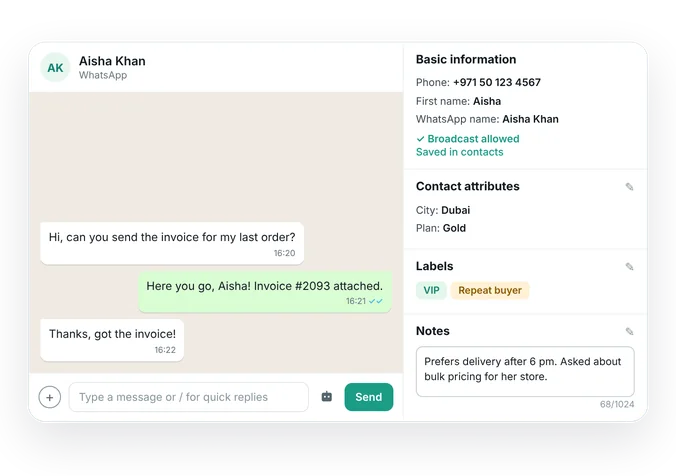
See the full customer picture beside every chat
The contact panel sits next to the conversation, so your team never has to ask a customer to repeat themselves.
Basic information with a Broadcast allowed check
Contact attributes, such as city or plan
Labels, such as VIP or Repeat buyer
Private notes up to 1,024 characters, never seen by the customer
05 · 24-hour window
Never get caught out by the 24-hour window
A countdown at the top of each chat shows how long you can still send free-form replies. When it closes, send an approved template right from the chat to restart the conversation.
Live countdown on every chat
A clear notice when the window has closed
Send Template without leaving the chat
The window reopens for 24 hours when the customer replies

Also built in
The small things that save your team hours.
Coexistence
Keep using the WhatsApp Business app on your phone. Chats stay in sync with the team inbox in real time.
Multiple numbers
Connected more than one number? Switch between them with the Load chats for dropdown.
Start new conversations
Message a customer first by number or from your contact list, using an approved template.
Automation replies in view
Replies sent by your automations appear in the same chat, labeled with the workflow that sent them.
Side by side
Sharing one phone vs a WhatsApp team inbox
Sharing one phone
GreenTick team inbox
Who can reply
Whoever has the phone
Your whole team, each from their own login
Who owns a chat
Nobody is sure
Every chat has an owner tag
Common questions
Typed out again every time
Saved quick replies with /
Customer context
Scroll up through old messages
Labels, attributes and notes beside the chat
24-hour window
Easy to miss
Live countdown and Send Template in the chat
Works with the rest of GreenTick: let WhatsApp automation handle welcomes and away replies, let the WhatsApp AI chatbot answer routine questions, and keep your team for the chats that need a person.
Good to know
The rules, in plain words.
24 h
service window
Free-form replies work for 24 hours after the customer's last message. After that, send an approved template to restart the chat.
5 / 16 / 100 MB
file limits
Images up to 5 MB, MP4 videos up to 16 MB and PDF documents up to 100 MB, sent straight from the chat.
1,024
characters per note
Notes are for your team only. Customers never see them, so you can write down anything useful.
Synced
with your phone
With Coexistence, the same number keeps working in the WhatsApp Business app, in sync with the team inbox.
Straight from Meta: the 24-hour customer service window is a WhatsApp platform rule. It starts when a customer messages you and resets each time they message again. Read Meta's documentation.
Get started
Set up your WhatsApp team inbox in 5 steps.
No developer needed. Everything happens in your GreenTick dashboard.
1
Connect your number
Connect your WhatsApp number to GreenTick. With Coexistence, it keeps working in the WhatsApp Business app too.
2
Add your team
Invite teammates so each person has their own login to the shared inbox.
3
Open Live Chat
Pick your number in Load chats for and see every conversation in one list.
4
Assign every chat
Set Assign to a team member or an AI Agent, so each chat has an owner.
5
Reply faster
Use / for quick replies and + for files, templates, Flows and catalog products.
FAQs
Everything people ask about a WhatsApp team inbox.
What is a WhatsApp team inbox?
It is one shared screen where your whole team sees and replies to every WhatsApp conversation on your business number. In GreenTick it is called Live Chat, and it runs on the Official WhatsApp API.
Can multiple people use the same WhatsApp number?
Yes. With a WhatsApp team inbox, your whole team replies from one connected number, each from their own login, instead of passing one phone around.
How does chat assignment work?
In the contact panel, set Assign to a Team Member or an AI Agent. The owner's name shows as a tag on the conversation, so the whole team knows who is handling it.
How do quick replies work in the team inbox?
Save the answers your team sends often. In any chat, type / in the message bar and pick a saved reply. Quick replies are shared with the whole team and can include images or files.
Can I keep using the WhatsApp Business app on my phone?
Yes. With Coexistence, your number stays active in the WhatsApp Business app while also running in the team inbox, and chats stay in sync.
What can I send from the team inbox?
Text and emojis, images up to 5 MB, MP4 videos up to 16 MB, PDFs up to 100 MB, approved templates, WhatsApp Flows and products from your catalog.
What happens when the 24-hour window closes?
You can't send a free-form reply anymore. Click Send Template to send an approved template, and when the customer replies, a new 24-hour window opens.
Can customers see internal notes or labels?
No. Notes, labels and contact attributes are only visible to your team inside GreenTick. Each note can hold up to 1,024 characters.
Everything you need to grow on WhatsApp, in one place.
The team inbox works alongside the rest of GreenTick, all on the Official WhatsApp API.
Shared Team Inbox
Real-Time Chat Sync
AI Chatbot
Automations
Template Manager
Bulk Broadcast
WhatsApp Flows
Catalog